'%3e%3cg%20filter='url(%23filter0_i_679_862)'%3e%3ccircle%20cx='47.3083'%20cy='88.4997'%20r='11.3083'%20fill='url(%23paint0_radial_679_862)'/%3e%3c/g%3e%3ccircle%20cx='50.0719'%20cy='91.9742'%20r='4.025'%20fill='%231B1B1B'/%3e%3cg%20style='mix-blend-mode:color-dodge'%3e%3ccircle%20cx='47.3893'%20cy='90.0612'%20r='1.91667'%20fill='%23D9D9D9'/%3e%3c/g%3e%3c/g%3e%3cg%20clip-path='url(%23clip1_679_862)'%3e%3cg%20filter='url(%23filter1_i_679_862)'%3e%3ccircle%20cx='81.6443'%20cy='88.4997'%20r='11.3083'%20fill='url(%23paint1_radial_679_862)'/%3e%3c/g%3e%3ccircle%20cx='84.4039'%20cy='91.9742'%20r='4.025'%20fill='%231B1B1B'/%3e%3cg%20style='mix-blend-mode:color-dodge'%3e%3ccircle%20cx='81.7214'%20cy='90.0612'%20r='1.91667'%20fill='%23D9D9D9'/%3e%3c/g%3e%3c/g%3e%3cdefs%3e%3cfilter%20id='filter0_i_679_862'%20x='36'%20y='75.1711'%20width='23.6273'%20height='24.6375'%20filterUnits='userSpaceOnUse'%20color-interpolation-filters='sRGB'%3e%3cfeFlood%20flood-opacity='0'%20result='BackgroundImageFix'/%3e%3cfeBlend%20mode='normal'%20in='SourceGraphic'%20in2='BackgroundImageFix'%20result='shape'/%3e%3cfeColorMatrix%20in='SourceAlpha'%20type='matrix'%20values='0%200%200%200%200%200%200%200%200%200%200%200%200%200%200%200%200%200%20127%200'%20result='hardAlpha'/%3e%3cfeOffset%20dx='1.01015'%20dy='-2.02031'/%3e%3cfeGaussianBlur%20stdDeviation='1.01015'/%3e%3cfeComposite%20in2='hardAlpha'%20operator='arithmetic'%20k2='-1'%20k3='1'/%3e%3cfeColorMatrix%20type='matrix'%20values='0%200%200%200%200%200%200%200%200%200%200%200%200%200%200%200%200%200%200.15%200'/%3e%3cfeBlend%20mode='normal'%20in2='shape'%20result='effect1_innerShadow_679_862'/%3e%3c/filter%3e%3cfilter%20id='filter1_i_679_862'%20x='70.3359'%20y='75.1711'%20width='23.6273'%20height='24.6375'%20filterUnits='userSpaceOnUse'%20color-interpolation-filters='sRGB'%3e%3cfeFlood%20flood-opacity='0'%20result='BackgroundImageFix'/%3e%3cfeBlend%20mode='normal'%20in='SourceGraphic'%20in2='BackgroundImageFix'%20result='shape'/%3e%3cfeColorMatrix%20in='SourceAlpha'%20type='matrix'%20values='0%200%200%200%200%200%200%200%200%200%200%200%200%200%200%200%200%200%20127%200'%20result='hardAlpha'/%3e%3cfeOffset%20dx='1.01015'%20dy='-2.02031'/%3e%3cfeGaussianBlur%20stdDeviation='1.01015'/%3e%3cfeComposite%20in2='hardAlpha'%20operator='arithmetic'%20k2='-1'%20k3='1'/%3e%3cfeColorMatrix%20type='matrix'%20values='0%200%200%200%200%200%200%200%200%200%200%200%200%200%200%200%200%200%200.15%200'/%3e%3cfeBlend%20mode='normal'%20in2='shape'%20result='effect1_innerShadow_679_862'/%3e%3c/filter%3e%3cradialGradient%20id='paint0_radial_679_862'%20cx='0'%20cy='0'%20r='1'%20gradientUnits='userSpaceOnUse'%20gradientTransform='translate(47.3083%2088.4997)%20rotate(29.2803)%20scale(11.9552)'%3e%3cstop%20offset='0.634615'%20stop-color='white'/%3e%3cstop%20offset='1'%20stop-color='%23A8FFEA'/%3e%3c/radialGradient%3e%3cradialGradient%20id='paint1_radial_679_862'%20cx='0'%20cy='0'%20r='1'%20gradientUnits='userSpaceOnUse'%20gradientTransform='translate(81.6443%2088.4997)%20rotate(29.2803)%20scale(11.9552)'%3e%3cstop%20offset='0.634615'%20stop-color='white'/%3e%3cstop%20offset='1'%20stop-color='%23A8FFEA'/%3e%3c/radialGradient%3e%3cclipPath%20id='clip0_679_862'%3e%3crect%20width='22.6167'%20height='22.6167'%20fill='white'%20transform='translate(36%2077.1914)'/%3e%3c/clipPath%3e%3cclipPath%20id='clip1_679_862'%3e%3crect%20width='22.6167'%20height='22.6167'%20fill='white'%20transform='translate(70.3359%2077.1914)'/%3e%3c/clipPath%3e%3c/defs%3e%3c/svg%3e)
How to Import Transactions from a PDF Statement
Extract transactions from digital PDF bank and credit card statements into Moneko using AI-powered PDF import, with limits, tips, and troubleshooting.
How to Import Transactions from a PDF Statement
Moneko can extract transactions from digital PDF bank and credit card statements using AI. This is useful when your bank does not offer a CSV export but does provide downloadable PDF statements.
What you need before importing
- A digital (text-based) PDF bank or credit card statement. Moneko works best with text-based PDFs rather than scanned images.
- File size under 20MB.
- Ideally 1 to 5 pages per file. Split longer statements into smaller files for best results.
- An active internet connection (the PDF is processed by Moneko's secure import service).
If your bank offers a CSV export, use that instead — CSV is more reliable than PDF for transaction import.
Step 1: Open the import wizard
- Open the Home screen in the Moneko mobile app.
- Tap the AI capture button (the round action button).
- In the sheet that appears, choose Files.
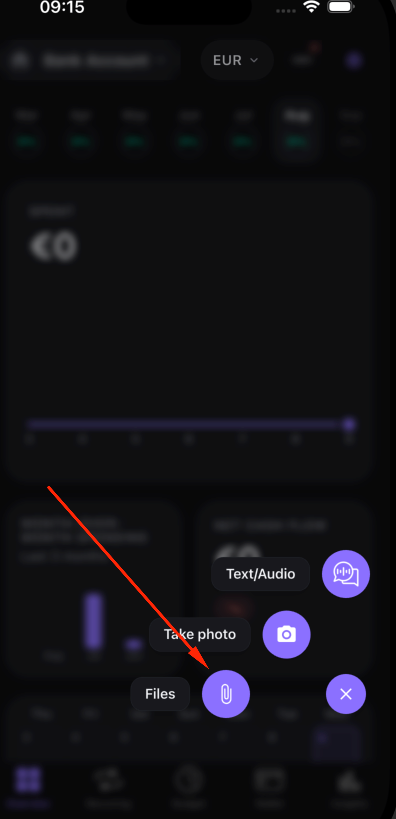
The import wizard opens with a three-step timeline: Select File, Map Columns, Preview.
Step 2: Select a source and pick your PDF
- Choose a source app (or Other if your bank is not listed).
- A hint card tells you which file to upload.
- Tap the file row to open the file picker.
- Select your PDF statement.
Moneko checks the file size. If the PDF is over 20MB, you will see an error telling you to reduce the file size or split it into smaller files.
Step 3: Wait for AI extraction
Moneko sends the PDF to its secure import service, which uses AI to read the statement and extract a structured table of transactions. A progress dialog shows the analysis status while this happens.
The extraction service:
- Reads the text from the PDF.
- Identifies transaction rows (date, description, amount).
- Returns a structured table that feeds into the normal Map Columns and Preview steps.
This process works best with digital (text-based) PDFs. Scanned image PDFs may fail if the image quality is low.
Step 4: Map columns (if needed)
After extraction, Moneko auto-maps the columns. If confidence is high, this step is skipped.
Required fields:
- Date and Amount (or Debit and Credit with the split toggle).
Optional fields:
- Category, Description, Merchant, Currency, Type, Reference, and Balance.
Confirm the mappings and tap Next.
Step 5: Preview and confirm
Review the extracted transactions in the preview:
- Summary card: total rows, valid rows, errors, and duplicates.
- Target: choose your personal account or a shared household space, and pick the wallet that receives the transactions.
- Row list: tap any row to edit the date, amount, category, description, merchant, currency, or type.
- Skip Duplicates toggle is on by default.
Tap Import (N) to save the valid rows.
After the import
The completion dialog reports imported, failed, and skipped counts. Moneko refreshes your data so the new transactions appear immediately.
To import another PDF statement, run the wizard again with the next file.
PDF import limits and tips
| Limit | Detail |
|---|---|
| Maximum file size | 20MB |
| Recommended page count | 1 to 5 pages per file |
| Best format | Digital (text-based) PDF |
| Scanned PDFs | Use only if clear and high-contrast |
| Processing | Sent to Moneko's secure import service via encrypted connection |
Tips for best results:
- Split long statements. If your statement is 10+ pages, split it into 1-5 page chunks and import each separately.
- Use digital PDFs. Download the statement from your bank's website rather than scanning a paper copy.
- Check extraction quality. Always review the preview before confirming. AI extraction is good but not perfect — fix any rows that look wrong.
- Prefer CSV when available. If your bank offers a CSV export, use that instead of PDF. CSV is more reliable because the data is already structured.
- One statement per import. Import each PDF file separately so you can choose the right target wallet for each account.
Troubleshooting PDF imports
| Problem | Solution |
|---|---|
| PDF too large | Split into smaller files under 20MB, ideally 1-5 pages each |
| PDF too long / page limit | Split into smaller files of 1-5 pages |
| Could not extract transactions | Use a digital (text-based) PDF or a clearer scan. Try a CSV export from your bank instead |
| Processing timed out | Split the PDF into smaller files and try again |
| Wrong columns mapped | Go back to Map Columns from the preview and re-map manually |
| Session expired | Sign back into Moneko and retry the import |
| Service temporarily unavailable | Wait a moment and retry. If it persists, contact [email protected] |
Related help
Frequently Asked Questions
Yes. Moneko uses AI to extract transactions from digital PDF bank and credit card statements. Pick a PDF file in the import wizard and Moneko sends it to a secure import service that reads the statement and returns a structured table of transactions.