'%3e%3cg%20filter='url(%23filter0_i_679_862)'%3e%3ccircle%20cx='47.3083'%20cy='88.4997'%20r='11.3083'%20fill='url(%23paint0_radial_679_862)'/%3e%3c/g%3e%3ccircle%20cx='50.0719'%20cy='91.9742'%20r='4.025'%20fill='%231B1B1B'/%3e%3cg%20style='mix-blend-mode:color-dodge'%3e%3ccircle%20cx='47.3893'%20cy='90.0612'%20r='1.91667'%20fill='%23D9D9D9'/%3e%3c/g%3e%3c/g%3e%3cg%20clip-path='url(%23clip1_679_862)'%3e%3cg%20filter='url(%23filter1_i_679_862)'%3e%3ccircle%20cx='81.6443'%20cy='88.4997'%20r='11.3083'%20fill='url(%23paint1_radial_679_862)'/%3e%3c/g%3e%3ccircle%20cx='84.4039'%20cy='91.9742'%20r='4.025'%20fill='%231B1B1B'/%3e%3cg%20style='mix-blend-mode:color-dodge'%3e%3ccircle%20cx='81.7214'%20cy='90.0612'%20r='1.91667'%20fill='%23D9D9D9'/%3e%3c/g%3e%3c/g%3e%3cdefs%3e%3cfilter%20id='filter0_i_679_862'%20x='36'%20y='75.1711'%20width='23.6273'%20height='24.6375'%20filterUnits='userSpaceOnUse'%20color-interpolation-filters='sRGB'%3e%3cfeFlood%20flood-opacity='0'%20result='BackgroundImageFix'/%3e%3cfeBlend%20mode='normal'%20in='SourceGraphic'%20in2='BackgroundImageFix'%20result='shape'/%3e%3cfeColorMatrix%20in='SourceAlpha'%20type='matrix'%20values='0%200%200%200%200%200%200%200%200%200%200%200%200%200%200%200%200%200%20127%200'%20result='hardAlpha'/%3e%3cfeOffset%20dx='1.01015'%20dy='-2.02031'/%3e%3cfeGaussianBlur%20stdDeviation='1.01015'/%3e%3cfeComposite%20in2='hardAlpha'%20operator='arithmetic'%20k2='-1'%20k3='1'/%3e%3cfeColorMatrix%20type='matrix'%20values='0%200%200%200%200%200%200%200%200%200%200%200%200%200%200%200%200%200%200.15%200'/%3e%3cfeBlend%20mode='normal'%20in2='shape'%20result='effect1_innerShadow_679_862'/%3e%3c/filter%3e%3cfilter%20id='filter1_i_679_862'%20x='70.3359'%20y='75.1711'%20width='23.6273'%20height='24.6375'%20filterUnits='userSpaceOnUse'%20color-interpolation-filters='sRGB'%3e%3cfeFlood%20flood-opacity='0'%20result='BackgroundImageFix'/%3e%3cfeBlend%20mode='normal'%20in='SourceGraphic'%20in2='BackgroundImageFix'%20result='shape'/%3e%3cfeColorMatrix%20in='SourceAlpha'%20type='matrix'%20values='0%200%200%200%200%200%200%200%200%200%200%200%200%200%200%200%200%200%20127%200'%20result='hardAlpha'/%3e%3cfeOffset%20dx='1.01015'%20dy='-2.02031'/%3e%3cfeGaussianBlur%20stdDeviation='1.01015'/%3e%3cfeComposite%20in2='hardAlpha'%20operator='arithmetic'%20k2='-1'%20k3='1'/%3e%3cfeColorMatrix%20type='matrix'%20values='0%200%200%200%200%200%200%200%200%200%200%200%200%200%200%200%200%200%200.15%200'/%3e%3cfeBlend%20mode='normal'%20in2='shape'%20result='effect1_innerShadow_679_862'/%3e%3c/filter%3e%3cradialGradient%20id='paint0_radial_679_862'%20cx='0'%20cy='0'%20r='1'%20gradientUnits='userSpaceOnUse'%20gradientTransform='translate(47.3083%2088.4997)%20rotate(29.2803)%20scale(11.9552)'%3e%3cstop%20offset='0.634615'%20stop-color='white'/%3e%3cstop%20offset='1'%20stop-color='%23A8FFEA'/%3e%3c/radialGradient%3e%3cradialGradient%20id='paint1_radial_679_862'%20cx='0'%20cy='0'%20r='1'%20gradientUnits='userSpaceOnUse'%20gradientTransform='translate(81.6443%2088.4997)%20rotate(29.2803)%20scale(11.9552)'%3e%3cstop%20offset='0.634615'%20stop-color='white'/%3e%3cstop%20offset='1'%20stop-color='%23A8FFEA'/%3e%3c/radialGradient%3e%3cclipPath%20id='clip0_679_862'%3e%3crect%20width='22.6167'%20height='22.6167'%20fill='white'%20transform='translate(36%2077.1914)'/%3e%3c/clipPath%3e%3cclipPath%20id='clip1_679_862'%3e%3crect%20width='22.6167'%20height='22.6167'%20fill='white'%20transform='translate(70.3359%2077.1914)'/%3e%3c/clipPath%3e%3c/defs%3e%3c/svg%3e)
How to Create Your First Space in Moneko
Learn how to create your first Space in Moneko, switch between Spaces, and manage private or shared Spaces for personal spending, household expenses, trips, and group budgets.
How to Create Your First Space in Moneko
If you are new to Moneko, one of the first things to understand is Spaces.
Spaces help keep your money organized.
Instead of putting every expense, budget, and reminder in one place, Moneko lets you separate different parts of your life into different Spaces.
This means your personal spending does not get mixed with:
- shared household expenses
- trip costs
- group spending
- family or couple expenses
Once you understand how Spaces work, the rest of Moneko becomes much easier to use.
What Is a Space in Moneko?
You can think of a Space as a separate wallet or money context for a specific part of your life.
Each Space keeps its own data and does not mix with your other Spaces.
A Space has its own:
- people
- currency
- recurring expenses and income
- budgets and Pockets
- summaries and insights
For example, you might create:
- Personal Space for your own day-to-day spending
- Couple or Family Space for shared household expenses
- Trip Space for travel costs
- Group Space for roommates or friends
This helps you keep each part of your money clear and separate.
Expected Result
After creating separate Spaces, you can view expenses, budgets, recurring items, and insights based on the specific Space you are using.
Where to Find Your Spaces
You can find your Spaces from the top left corner of the app.
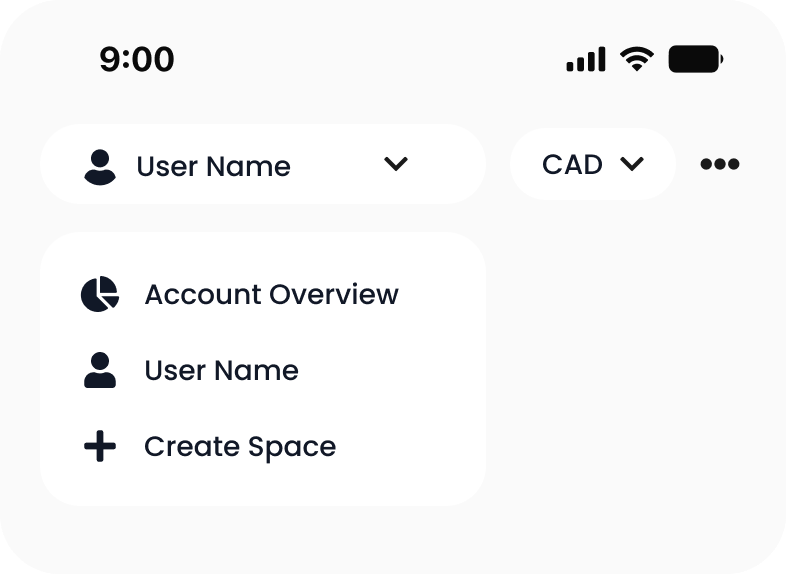
To view your Spaces:
- Open Moneko.
- Tap the Space name or icon in the top left corner.
- View your list of Spaces.
- Choose a Space to switch into, or create a new one.
From this menu, you can:
- see all your Spaces
- switch between Spaces
- create a new Space
Important
When you switch Spaces, you are not only changing one screen. You are changing the full money context inside the app.
It is like moving from one wallet to another.
How to Create a New Space
Creating a Space only takes a few steps.
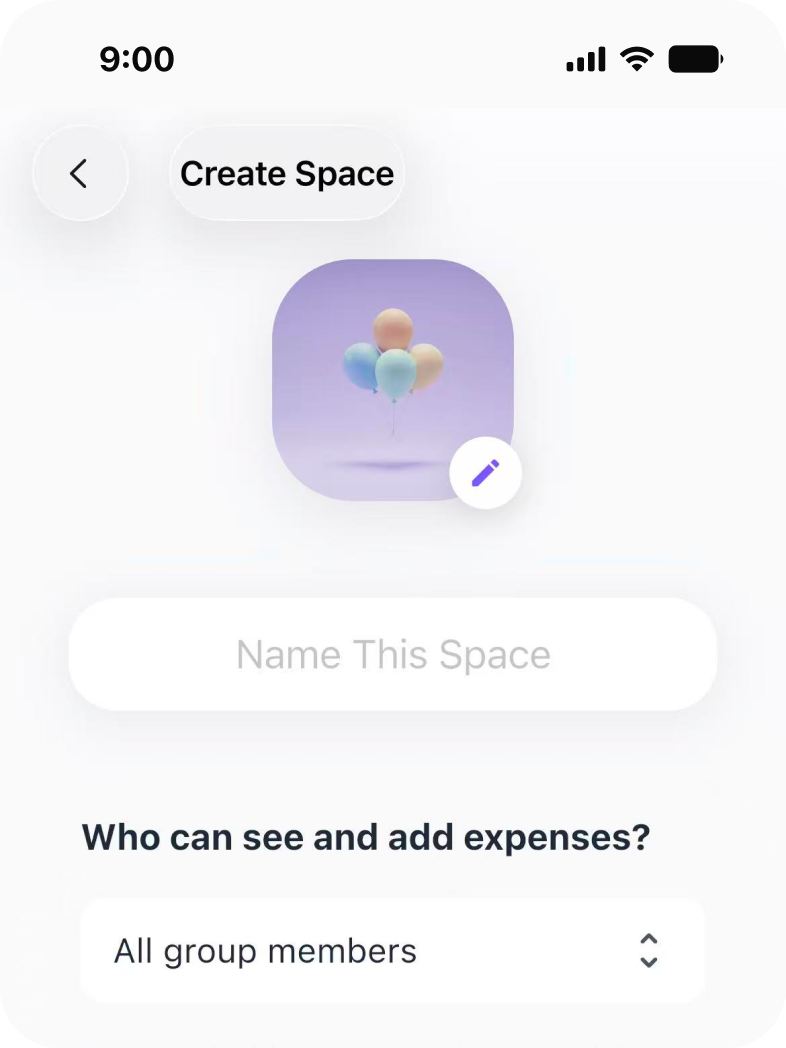
-
Tap the top left menu.
-
Tap Create Space.
-
Enter a name for the Space.
For example:
- Living Expenses
- Japan Trip
- Family Budget
- Personal Spending
-
Choose who can see and add expenses.
-
Tap Continue.
Your new Space is now ready to use.
Expected Result
After creating the Space, Moneko will keep that Space’s expenses, people, currency, recurring expenses and income, budgets, Pockets, summaries, and insights separate from your other Spaces.
Private Spaces vs Shared Spaces
When you create a Space, you can make it either private or shared.
Private Space
A private Space is only visible to you.
Use a private Space for:
- personal spending
- private budgets
- individual recurring expenses or income
- your own financial summaries and insights
Shared Space
A shared Space lets you invite other people.
In a shared Space:
- everyone sees the same expenses
- anyone can add expenses
- everything stays in sync automatically
This is useful for:
- couples
- families
- roommates
- friends
- trips
- group spending
There is no need to manually sync things later, and one person does not need to manage everything for the whole group.
Best Practice
Use a shared Space when more than one person needs to see or add expenses.
Use a private Space when the money context only belongs to you.
What Happens When You Switch Spaces?
Switching Spaces changes what you see across the app.
This includes:
- recurring payments
- budgets and Pockets
- summaries and insights
Each Space works like its own mini environment.
For example, if you switch from your Personal Space to your Family Space, you are now viewing a completely different set of:
- expenses
- budgets
- recurring items
- summaries
- insights
This is why the app content changes when you switch Spaces.
Expected Result
After switching Spaces, Moneko updates the app to show the data that belongs to the selected Space.
Common Mistake to Avoid
Do not assume an expense is missing just because you cannot see it right away.
You may simply be viewing a different Space.
How to Edit a Space
To edit a Space, first switch to the Space you want to manage.
Then follow these steps:
- Tap the three dot icon in the top right.
- Select Manage Shared Space.
- Open the Space Settings screen.
From Space Settings, you can:
- edit the Space name
- change the Space image
- invite new members
- see who is in the Space
- view member roles
- delete the Space if needed
Any changes you make only apply to the Space you are currently managing.
They do not affect your other Spaces.
Who Can Manage a Shared Space?
If the Space is shared, only the owner or admins can manage members or delete the Space.
This means owner or admin permissions may be required to:
- invite new members
- manage members
- delete the Space
Personal Spaces can only be edited by you.
Expected Result
Space management stays controlled, especially when multiple people are using the same shared Space.
Troubleshooting Common Issues
I Cannot Find an Expense
Check whether you are viewing the correct Space.
Since each Space has its own data, an expense created in one Space will not appear inside another Space.
My Budgets or Pockets Look Different
Budgets and Pockets are separate for each Space.
If they look different, you may have switched into another Space.
My Recurring Expenses or Income Changed
Recurring expenses and income belong to the Space where they were created.
Switch back to the correct Space to view the expected recurring items.
I Cannot Manage Members in a Shared Space
Only the owner or admins can manage members or delete a shared Space.
If you do not see management options, you may not have the required role.
I Edited a Space but Other Spaces Did Not Change
This is expected.
Changes only apply to the Space you are currently managing.
Frequently Asked Questions
A Space is a separate money context in Moneko. Each Space keeps its own people, currency, recurring expenses and income, budgets and Pockets, summaries, and insights.