'%3e%3cg%20filter='url(%23filter0_i_679_862)'%3e%3ccircle%20cx='47.3083'%20cy='88.4997'%20r='11.3083'%20fill='url(%23paint0_radial_679_862)'/%3e%3c/g%3e%3ccircle%20cx='50.0719'%20cy='91.9742'%20r='4.025'%20fill='%231B1B1B'/%3e%3cg%20style='mix-blend-mode:color-dodge'%3e%3ccircle%20cx='47.3893'%20cy='90.0612'%20r='1.91667'%20fill='%23D9D9D9'/%3e%3c/g%3e%3c/g%3e%3cg%20clip-path='url(%23clip1_679_862)'%3e%3cg%20filter='url(%23filter1_i_679_862)'%3e%3ccircle%20cx='81.6443'%20cy='88.4997'%20r='11.3083'%20fill='url(%23paint1_radial_679_862)'/%3e%3c/g%3e%3ccircle%20cx='84.4039'%20cy='91.9742'%20r='4.025'%20fill='%231B1B1B'/%3e%3cg%20style='mix-blend-mode:color-dodge'%3e%3ccircle%20cx='81.7214'%20cy='90.0612'%20r='1.91667'%20fill='%23D9D9D9'/%3e%3c/g%3e%3c/g%3e%3cdefs%3e%3cfilter%20id='filter0_i_679_862'%20x='36'%20y='75.1711'%20width='23.6273'%20height='24.6375'%20filterUnits='userSpaceOnUse'%20color-interpolation-filters='sRGB'%3e%3cfeFlood%20flood-opacity='0'%20result='BackgroundImageFix'/%3e%3cfeBlend%20mode='normal'%20in='SourceGraphic'%20in2='BackgroundImageFix'%20result='shape'/%3e%3cfeColorMatrix%20in='SourceAlpha'%20type='matrix'%20values='0%200%200%200%200%200%200%200%200%200%200%200%200%200%200%200%200%200%20127%200'%20result='hardAlpha'/%3e%3cfeOffset%20dx='1.01015'%20dy='-2.02031'/%3e%3cfeGaussianBlur%20stdDeviation='1.01015'/%3e%3cfeComposite%20in2='hardAlpha'%20operator='arithmetic'%20k2='-1'%20k3='1'/%3e%3cfeColorMatrix%20type='matrix'%20values='0%200%200%200%200%200%200%200%200%200%200%200%200%200%200%200%200%200%200.15%200'/%3e%3cfeBlend%20mode='normal'%20in2='shape'%20result='effect1_innerShadow_679_862'/%3e%3c/filter%3e%3cfilter%20id='filter1_i_679_862'%20x='70.3359'%20y='75.1711'%20width='23.6273'%20height='24.6375'%20filterUnits='userSpaceOnUse'%20color-interpolation-filters='sRGB'%3e%3cfeFlood%20flood-opacity='0'%20result='BackgroundImageFix'/%3e%3cfeBlend%20mode='normal'%20in='SourceGraphic'%20in2='BackgroundImageFix'%20result='shape'/%3e%3cfeColorMatrix%20in='SourceAlpha'%20type='matrix'%20values='0%200%200%200%200%200%200%200%200%200%200%200%200%200%200%200%200%200%20127%200'%20result='hardAlpha'/%3e%3cfeOffset%20dx='1.01015'%20dy='-2.02031'/%3e%3cfeGaussianBlur%20stdDeviation='1.01015'/%3e%3cfeComposite%20in2='hardAlpha'%20operator='arithmetic'%20k2='-1'%20k3='1'/%3e%3cfeColorMatrix%20type='matrix'%20values='0%200%200%200%200%200%200%200%200%200%200%200%200%200%200%200%200%200%200.15%200'/%3e%3cfeBlend%20mode='normal'%20in2='shape'%20result='effect1_innerShadow_679_862'/%3e%3c/filter%3e%3cradialGradient%20id='paint0_radial_679_862'%20cx='0'%20cy='0'%20r='1'%20gradientUnits='userSpaceOnUse'%20gradientTransform='translate(47.3083%2088.4997)%20rotate(29.2803)%20scale(11.9552)'%3e%3cstop%20offset='0.634615'%20stop-color='white'/%3e%3cstop%20offset='1'%20stop-color='%23A8FFEA'/%3e%3c/radialGradient%3e%3cradialGradient%20id='paint1_radial_679_862'%20cx='0'%20cy='0'%20r='1'%20gradientUnits='userSpaceOnUse'%20gradientTransform='translate(81.6443%2088.4997)%20rotate(29.2803)%20scale(11.9552)'%3e%3cstop%20offset='0.634615'%20stop-color='white'/%3e%3cstop%20offset='1'%20stop-color='%23A8FFEA'/%3e%3c/radialGradient%3e%3cclipPath%20id='clip0_679_862'%3e%3crect%20width='22.6167'%20height='22.6167'%20fill='white'%20transform='translate(36%2077.1914)'/%3e%3c/clipPath%3e%3cclipPath%20id='clip1_679_862'%3e%3crect%20width='22.6167'%20height='22.6167'%20fill='white'%20transform='translate(70.3359%2077.1914)'/%3e%3c/clipPath%3e%3c/defs%3e%3c/svg%3e)
How to Import and Export Data in Moneko
Learn how to import files, receipts, bank statements, and spreadsheets into Moneko, then export transactions or receipts from a full Space or filtered transaction list.
How to Import and Export Data in Moneko
Moneko makes it easy to bring your existing data into the app and export it whenever you need.
You can import:
- bank exports
- credit card statements
- receipts
- invoices
- spreadsheets
- plain text
You can also export your transactions or receipts in just a few taps.
This gives you more flexibility when managing your money, reviewing past spending, or keeping your own records outside Moneko.
What You Can Import into Moneko
Moneko supports several file types for importing data.
You can import:
- Photos: JPG and PNG files
- PDF files
- CSV files
- Excel files
- Plain text
You can use these import options for:
- bank statements
- credit card statements
- Excel budgeting sheets
- receipts
- invoices
Expected Result
After importing a supported file, Moneko analyzes the file and organizes the transactions for you.
How to Import Files into Moneko
Use this option when you want to import a file such as a bank statement, credit card statement, CSV file, Excel file, PDF, or plain text document.
- Go to the Space where you want to import the data.
- Tap the + button.
- Select Files.
- Choose the file you want to upload.
- Moneko will analyze and organize the transactions for you.
Important
Make sure you are in the correct Space before importing.
Imported data is added to the Space you are currently using.
Expected Result
Your imported file is processed, and the related transactions are organized inside the selected Space.
How to Import Receipts into Moneko
Use this option when you want to save a receipt with your transactions.
- Tap the + button.
- Select Gallery or take a photo.
- Upload your receipt.
Receipts are saved with your transactions so you can find them again later.
This is useful when you want to:
- keep proof of purchase
- review transaction details
- store invoices
- keep shared spending easier to verify
Expected Result
Your receipt is uploaded and saved with your transactions for easy reference.
How to Export Data from Moneko
There are two ways to export data in Moneko:
- Export a full Space
- Export specific transactions
Choose the option that matches what you need.
Option 1: Export a Full Space
Use this option when you want to export all transaction data or receipts from a Space.
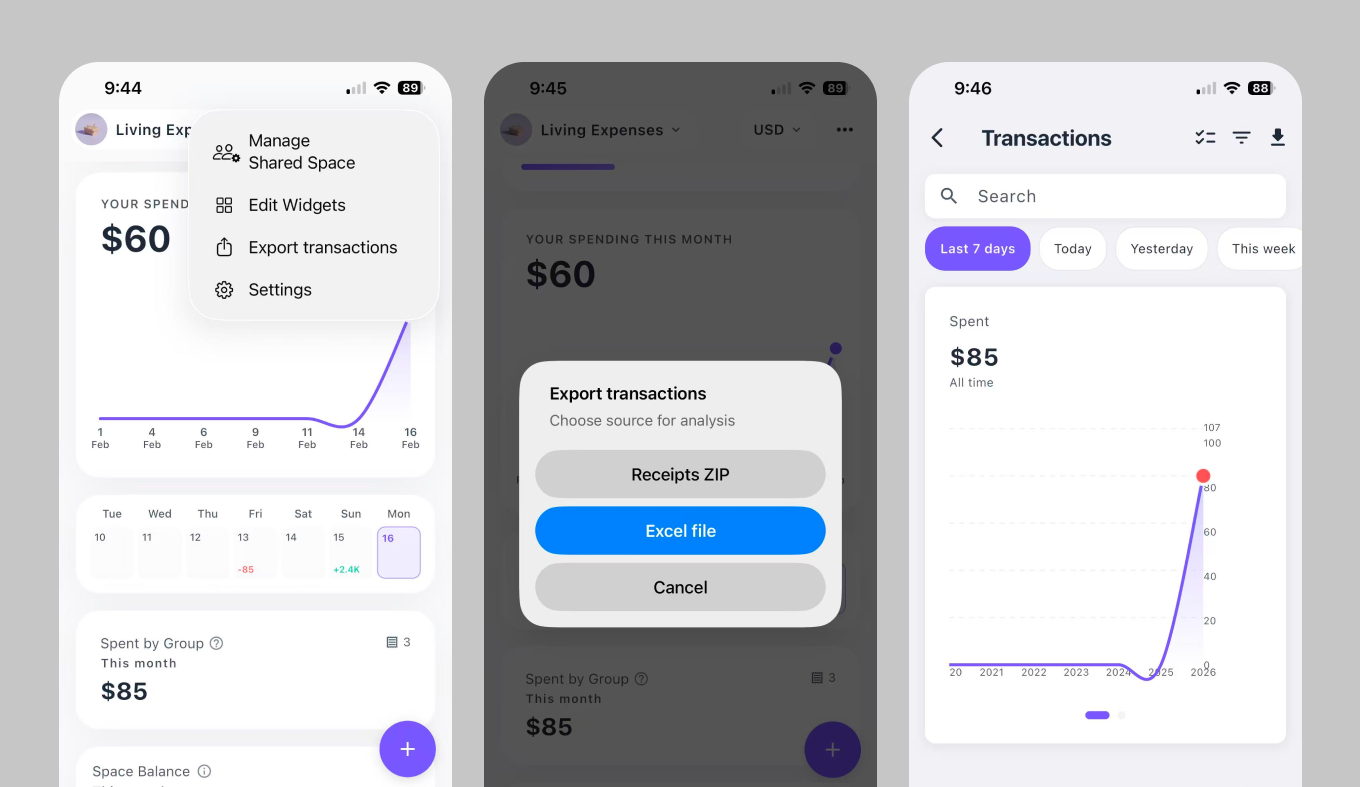
- Select your Space from the top left.
- Tap the three dot menu.
- Tap Export transactions.
- Choose the export format you need.
You can export:
- Excel file: for transactions
- ZIP file: for receipts
Expected Result
Moneko exports the selected Space data, so you can keep a copy outside the app.
Best Practice
Use a full Space export when you want a complete record of your transactions or receipts from that Space.
Option 2: Export Specific Transactions
Use this option when you only want to export certain transactions.
For example, you may want to export transactions from a specific date range.
- Go to Overview.
- Tap View all transactions.
- Apply filters, such as a date range.
- Tap the download icon.
Expected Result
Moneko exports only the transactions that match your selected filters.
Best Practice
Use filters before exporting if you only need a specific set of transactions.
Troubleshooting Common Issues
I Imported Data into the Wrong Space
Imported data is added to the Space you are currently using.
Switch to the correct Space before importing your file or receipt.
I Cannot Find My Imported Transactions
Check whether:
- you are viewing the correct Space
- the file format is supported
- the import finished processing
My Receipt Is Not Showing Where I Expected
Receipts are saved with your transactions.
Check the relevant transaction inside the Space where you uploaded the receipt.
I Only Want to Export Some Transactions
Go to Overview, tap View all transactions, apply filters such as a date range, then tap the download icon.
I Want to Export Receipts
Export the full Space and choose the ZIP file option for receipts.
Frequently Asked Questions
Moneko supports JPG, PNG, PDF, CSV, Excel files, and plain text.