'%3e%3cg%20filter='url(%23filter0_i_679_862)'%3e%3ccircle%20cx='47.3083'%20cy='88.4997'%20r='11.3083'%20fill='url(%23paint0_radial_679_862)'/%3e%3c/g%3e%3ccircle%20cx='50.0719'%20cy='91.9742'%20r='4.025'%20fill='%231B1B1B'/%3e%3cg%20style='mix-blend-mode:color-dodge'%3e%3ccircle%20cx='47.3893'%20cy='90.0612'%20r='1.91667'%20fill='%23D9D9D9'/%3e%3c/g%3e%3c/g%3e%3cg%20clip-path='url(%23clip1_679_862)'%3e%3cg%20filter='url(%23filter1_i_679_862)'%3e%3ccircle%20cx='81.6443'%20cy='88.4997'%20r='11.3083'%20fill='url(%23paint1_radial_679_862)'/%3e%3c/g%3e%3ccircle%20cx='84.4039'%20cy='91.9742'%20r='4.025'%20fill='%231B1B1B'/%3e%3cg%20style='mix-blend-mode:color-dodge'%3e%3ccircle%20cx='81.7214'%20cy='90.0612'%20r='1.91667'%20fill='%23D9D9D9'/%3e%3c/g%3e%3c/g%3e%3cdefs%3e%3cfilter%20id='filter0_i_679_862'%20x='36'%20y='75.1711'%20width='23.6273'%20height='24.6375'%20filterUnits='userSpaceOnUse'%20color-interpolation-filters='sRGB'%3e%3cfeFlood%20flood-opacity='0'%20result='BackgroundImageFix'/%3e%3cfeBlend%20mode='normal'%20in='SourceGraphic'%20in2='BackgroundImageFix'%20result='shape'/%3e%3cfeColorMatrix%20in='SourceAlpha'%20type='matrix'%20values='0%200%200%200%200%200%200%200%200%200%200%200%200%200%200%200%200%200%20127%200'%20result='hardAlpha'/%3e%3cfeOffset%20dx='1.01015'%20dy='-2.02031'/%3e%3cfeGaussianBlur%20stdDeviation='1.01015'/%3e%3cfeComposite%20in2='hardAlpha'%20operator='arithmetic'%20k2='-1'%20k3='1'/%3e%3cfeColorMatrix%20type='matrix'%20values='0%200%200%200%200%200%200%200%200%200%200%200%200%200%200%200%200%200%200.15%200'/%3e%3cfeBlend%20mode='normal'%20in2='shape'%20result='effect1_innerShadow_679_862'/%3e%3c/filter%3e%3cfilter%20id='filter1_i_679_862'%20x='70.3359'%20y='75.1711'%20width='23.6273'%20height='24.6375'%20filterUnits='userSpaceOnUse'%20color-interpolation-filters='sRGB'%3e%3cfeFlood%20flood-opacity='0'%20result='BackgroundImageFix'/%3e%3cfeBlend%20mode='normal'%20in='SourceGraphic'%20in2='BackgroundImageFix'%20result='shape'/%3e%3cfeColorMatrix%20in='SourceAlpha'%20type='matrix'%20values='0%200%200%200%200%200%200%200%200%200%200%200%200%200%200%200%200%200%20127%200'%20result='hardAlpha'/%3e%3cfeOffset%20dx='1.01015'%20dy='-2.02031'/%3e%3cfeGaussianBlur%20stdDeviation='1.01015'/%3e%3cfeComposite%20in2='hardAlpha'%20operator='arithmetic'%20k2='-1'%20k3='1'/%3e%3cfeColorMatrix%20type='matrix'%20values='0%200%200%200%200%200%200%200%200%200%200%200%200%200%200%200%200%200%200.15%200'/%3e%3cfeBlend%20mode='normal'%20in2='shape'%20result='effect1_innerShadow_679_862'/%3e%3c/filter%3e%3cradialGradient%20id='paint0_radial_679_862'%20cx='0'%20cy='0'%20r='1'%20gradientUnits='userSpaceOnUse'%20gradientTransform='translate(47.3083%2088.4997)%20rotate(29.2803)%20scale(11.9552)'%3e%3cstop%20offset='0.634615'%20stop-color='white'/%3e%3cstop%20offset='1'%20stop-color='%23A8FFEA'/%3e%3c/radialGradient%3e%3cradialGradient%20id='paint1_radial_679_862'%20cx='0'%20cy='0'%20r='1'%20gradientUnits='userSpaceOnUse'%20gradientTransform='translate(81.6443%2088.4997)%20rotate(29.2803)%20scale(11.9552)'%3e%3cstop%20offset='0.634615'%20stop-color='white'/%3e%3cstop%20offset='1'%20stop-color='%23A8FFEA'/%3e%3c/radialGradient%3e%3cclipPath%20id='clip0_679_862'%3e%3crect%20width='22.6167'%20height='22.6167'%20fill='white'%20transform='translate(36%2077.1914)'/%3e%3c/clipPath%3e%3cclipPath%20id='clip1_679_862'%3e%3crect%20width='22.6167'%20height='22.6167'%20fill='white'%20transform='translate(70.3359%2077.1914)'/%3e%3c/clipPath%3e%3c/defs%3e%3c/svg%3e)
How to Import Transactions from an Excel File
Import historical transactions from XLSX or XLS spreadsheet exports into Moneko, including multi-sheet workbooks, column mapping, and preview review.
How to Import Transactions from an Excel File
Excel (XLSX and XLS) is a popular format for budgeting spreadsheets and app exports. Moneko's import wizard supports Excel files directly, including workbooks with multiple sheets.
What you need before importing
- An XLSX or XLS export from your budgeting app, bank, or spreadsheet.
- The file should contain at least a Date column and an Amount column (or separate Debit and Credit columns).
- Optional but helpful columns: Category, Description, Merchant, Currency, Type, Reference, and Balance.
- Make sure the sheet you want to import has clear column headers and transaction data below them. Moneko auto-detects the header row and skips leading metadata rows.
If your data is in a Google Sheet, export it as XLSX or CSV first.
Step 1: Open the import wizard
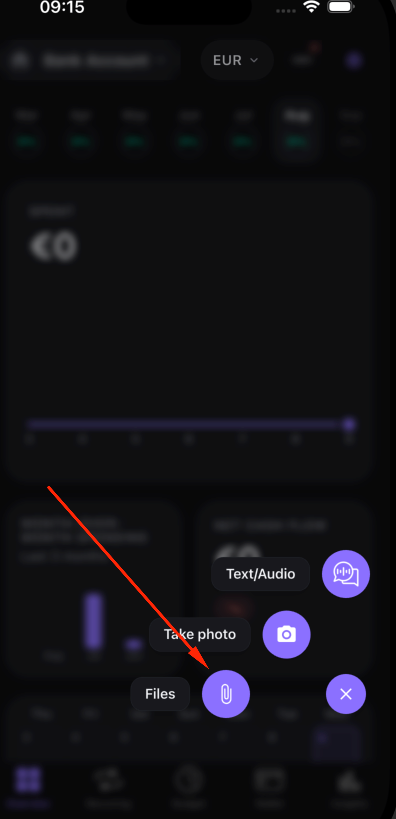
- Open the Home screen in the Moneko mobile app.
- Tap the AI capture button (the round action button).
- In the sheet that appears, choose Files.
The import wizard opens with a three-step timeline: Select File, Map Columns, Preview.
Step 2: Select a source and pick your Excel file
- Choose the app you are importing from. Moneko supports YNAB, Monarch, Copilot, PocketGuard, Splitwise, EveryDollar, Cashew, Mint, Goodbudget, Spendee, and Other.
- A hint card tells you which file to upload for that source.
- Tap the file row to open the file picker.
- Select your XLSX or XLS file.
Moneko parses all sheets in the workbook. If there is more than one sheet, it defaults to the sheet with the most rows.
Step 3: Choose a sheet (multi-sheet workbooks)
If your workbook has multiple sheets, a sheet selector appears as a row of tabs in the Map Columns step.
- The tab for the default sheet (most rows) is highlighted.
- Tap any tab to switch to a different sheet.
- The column mapping and preview update for the selected sheet.
This is useful when a single export workbook contains separate tabs for different accounts or different months. Import each sheet one at a time, choosing the right target wallet for each.
If no data is found in the Excel file, Moneko shows an error and lets you pick a different file.
Step 4: Map columns (if needed)
Moneko auto-detects column mappings by matching headers and sampling values. If confidence is high, this step is skipped.
Required fields:
- Date — the transaction date.
- Amount — the transaction amount, OR enable the Split Debit/Credit toggle and map both Debit and Credit columns.
Optional fields:
- Category, Description, Merchant, Currency, Type, Reference, and Balance.
To map a field, tap it and pick the matching column from the action sheet, or choose None to leave it unmapped.
A format badge may appear showing the detected bank or app format. Tap Next when the required fields are mapped.
Step 5: Preview and confirm
The preview step is where you verify everything before saving.
Summary card:
- Total rows, valid rows, rows with errors, and duplicates.
- Choose where transactions go: your personal account or a shared household space.
- Pick the specific wallet/account that will receive the transactions.
Row list:
- Tap any row to open the edit sheet and fix details.
- When you change a category, Moneko offers to apply it to all matching transactions.
- Rows with errors are excluded automatically.
Options:
- Skip Duplicates toggle (on by default).
- If mapping was auto-skipped, a banner lets you review it.
Tap Import (N) to save the valid rows.
After the import
A progress dialog shows live status as Moneko saves rows in batches. The completion dialog reports imported, failed, and skipped counts. Moneko refreshes your data so new transactions appear immediately.
To import another sheet from the same workbook, run the wizard again, pick the same file, and select the next sheet from the tab selector.
Excel import tips
- One sheet per import. Import each sheet separately so you can choose the right target wallet for each.
- Keep headers clear. Moneko detects the header row automatically and skips leading metadata rows (like "Account: Checking" or "Downloaded: 2024-01-01"), but make sure your column headers are clear and recognizable.
- Use unambiguous dates. Formats like YYYY-MM-DD reduce parsing errors.
- Split very large workbooks. If a sheet has thousands of rows, consider splitting it for easier review.
Troubleshooting Excel imports
| Problem | Solution |
|---|---|
| No data found in Excel file | Make sure the selected sheet has headers and transaction rows |
| Wrong sheet selected by default | Use the sheet selector tabs to switch to the correct sheet |
| Wrong columns mapped | Go back to Map Columns from the preview and re-map manually |
| Rows showing errors | Tap the row in preview and fix the date, amount, or currency |
| Session expired | Sign back into Moneko and retry the import |
Related help
Frequently Asked Questions
Moneko accepts both XLSX (modern Excel) and XLS (legacy Excel) files. The import wizard parses every sheet in the workbook and lets you choose which sheet to import.