'%3e%3cg%20filter='url(%23filter0_i_679_862)'%3e%3ccircle%20cx='47.3083'%20cy='88.4997'%20r='11.3083'%20fill='url(%23paint0_radial_679_862)'/%3e%3c/g%3e%3ccircle%20cx='50.0719'%20cy='91.9742'%20r='4.025'%20fill='%231B1B1B'/%3e%3cg%20style='mix-blend-mode:color-dodge'%3e%3ccircle%20cx='47.3893'%20cy='90.0612'%20r='1.91667'%20fill='%23D9D9D9'/%3e%3c/g%3e%3c/g%3e%3cg%20clip-path='url(%23clip1_679_862)'%3e%3cg%20filter='url(%23filter1_i_679_862)'%3e%3ccircle%20cx='81.6443'%20cy='88.4997'%20r='11.3083'%20fill='url(%23paint1_radial_679_862)'/%3e%3c/g%3e%3ccircle%20cx='84.4039'%20cy='91.9742'%20r='4.025'%20fill='%231B1B1B'/%3e%3cg%20style='mix-blend-mode:color-dodge'%3e%3ccircle%20cx='81.7214'%20cy='90.0612'%20r='1.91667'%20fill='%23D9D9D9'/%3e%3c/g%3e%3c/g%3e%3cdefs%3e%3cfilter%20id='filter0_i_679_862'%20x='36'%20y='75.1711'%20width='23.6273'%20height='24.6375'%20filterUnits='userSpaceOnUse'%20color-interpolation-filters='sRGB'%3e%3cfeFlood%20flood-opacity='0'%20result='BackgroundImageFix'/%3e%3cfeBlend%20mode='normal'%20in='SourceGraphic'%20in2='BackgroundImageFix'%20result='shape'/%3e%3cfeColorMatrix%20in='SourceAlpha'%20type='matrix'%20values='0%200%200%200%200%200%200%200%200%200%200%200%200%200%200%200%200%200%20127%200'%20result='hardAlpha'/%3e%3cfeOffset%20dx='1.01015'%20dy='-2.02031'/%3e%3cfeGaussianBlur%20stdDeviation='1.01015'/%3e%3cfeComposite%20in2='hardAlpha'%20operator='arithmetic'%20k2='-1'%20k3='1'/%3e%3cfeColorMatrix%20type='matrix'%20values='0%200%200%200%200%200%200%200%200%200%200%200%200%200%200%200%200%200%200.15%200'/%3e%3cfeBlend%20mode='normal'%20in2='shape'%20result='effect1_innerShadow_679_862'/%3e%3c/filter%3e%3cfilter%20id='filter1_i_679_862'%20x='70.3359'%20y='75.1711'%20width='23.6273'%20height='24.6375'%20filterUnits='userSpaceOnUse'%20color-interpolation-filters='sRGB'%3e%3cfeFlood%20flood-opacity='0'%20result='BackgroundImageFix'/%3e%3cfeBlend%20mode='normal'%20in='SourceGraphic'%20in2='BackgroundImageFix'%20result='shape'/%3e%3cfeColorMatrix%20in='SourceAlpha'%20type='matrix'%20values='0%200%200%200%200%200%200%200%200%200%200%200%200%200%200%200%200%200%20127%200'%20result='hardAlpha'/%3e%3cfeOffset%20dx='1.01015'%20dy='-2.02031'/%3e%3cfeGaussianBlur%20stdDeviation='1.01015'/%3e%3cfeComposite%20in2='hardAlpha'%20operator='arithmetic'%20k2='-1'%20k3='1'/%3e%3cfeColorMatrix%20type='matrix'%20values='0%200%200%200%200%200%200%200%200%200%200%200%200%200%200%200%200%200%200.15%200'/%3e%3cfeBlend%20mode='normal'%20in2='shape'%20result='effect1_innerShadow_679_862'/%3e%3c/filter%3e%3cradialGradient%20id='paint0_radial_679_862'%20cx='0'%20cy='0'%20r='1'%20gradientUnits='userSpaceOnUse'%20gradientTransform='translate(47.3083%2088.4997)%20rotate(29.2803)%20scale(11.9552)'%3e%3cstop%20offset='0.634615'%20stop-color='white'/%3e%3cstop%20offset='1'%20stop-color='%23A8FFEA'/%3e%3c/radialGradient%3e%3cradialGradient%20id='paint1_radial_679_862'%20cx='0'%20cy='0'%20r='1'%20gradientUnits='userSpaceOnUse'%20gradientTransform='translate(81.6443%2088.4997)%20rotate(29.2803)%20scale(11.9552)'%3e%3cstop%20offset='0.634615'%20stop-color='white'/%3e%3cstop%20offset='1'%20stop-color='%23A8FFEA'/%3e%3c/radialGradient%3e%3cclipPath%20id='clip0_679_862'%3e%3crect%20width='22.6167'%20height='22.6167'%20fill='white'%20transform='translate(36%2077.1914)'/%3e%3c/clipPath%3e%3cclipPath%20id='clip1_679_862'%3e%3crect%20width='22.6167'%20height='22.6167'%20fill='white'%20transform='translate(70.3359%2077.1914)'/%3e%3c/clipPath%3e%3c/defs%3e%3c/svg%3e)

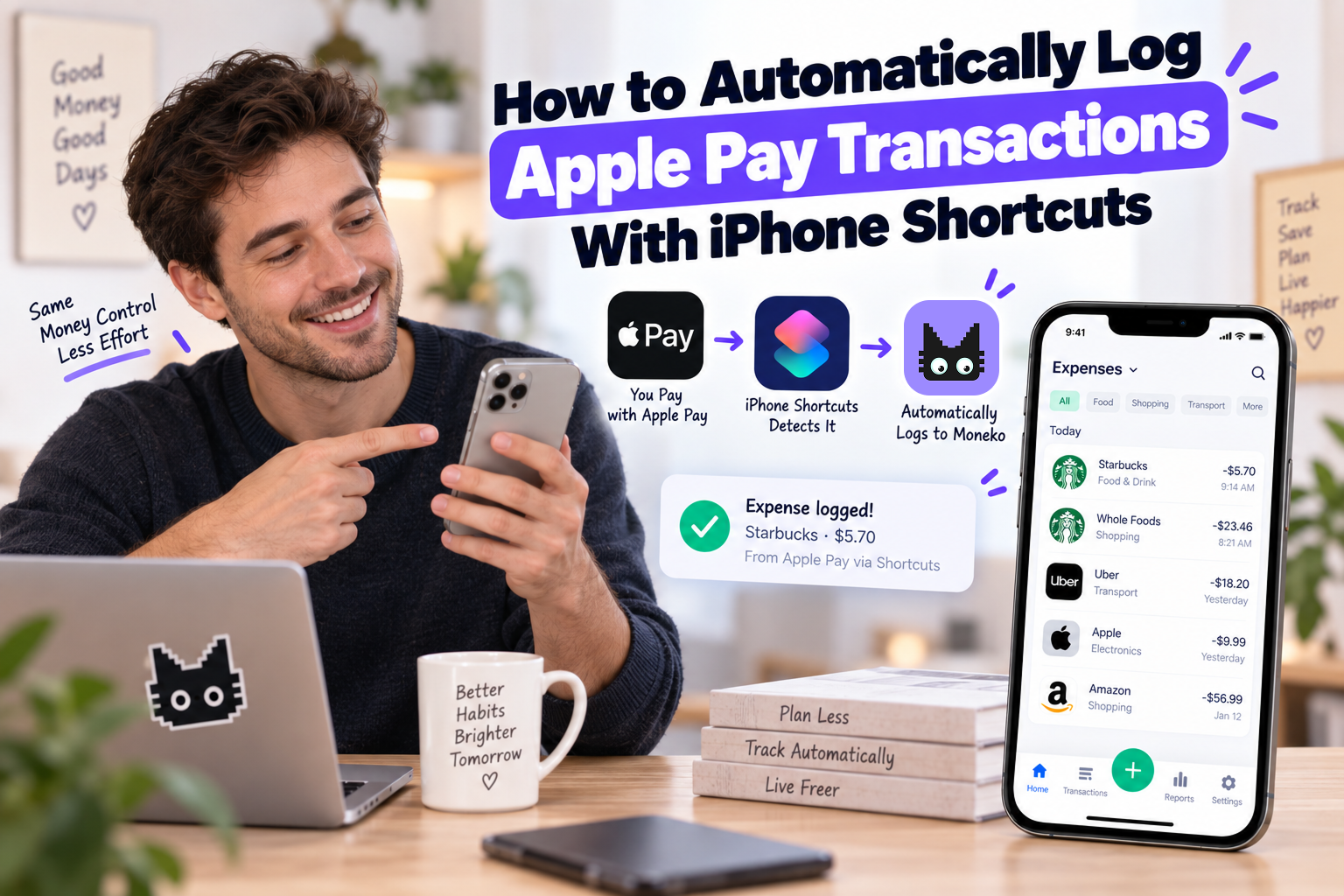
If you pay with Apple Pay throughout the day, manually entering the same purchases into an expense tracker feels unnecessary. Your iPhone already knows when you tapped your Wallet card and has transaction information from the purchase.
Apple's Shortcuts app includes a Transaction automation for Wallet. Select a card, make an eligible tap-to-pay purchase, and Shortcuts starts your automation. From there, you send the transaction amount and merchant to an expense tracker, spreadsheet, or another supported destination.
How Apple Pay Expense Tracking Works
The key feature is the Transaction trigger inside Shortcuts. Apple describes the trigger as an automation based on Wallet transactions, with a “When I tap” option for selected cards.
Suppose you buy groceries for $86.42 with Apple Pay. Your automation receives the Wallet transaction, extracts information such as the amount and merchant, then passes those details into an expense-tracking action.
Your tracker might receive:
Costco
$86.42
Mastercard
From there, the expense tracker handles budgeting, categorization, reports, or other financial organization.
This distinction is important. Shortcuts moves transaction information. Your expense tracker decides what happens with the information afterward.
How to Automatically Log Apple Pay Transactions
1. Open Shortcuts and Create an Automation
Open Shortcuts on your iPhone and select Automation.
Tap + or New Automation, then scroll through the available triggers until you find Transaction.
Apple introduced the Wallet Transaction trigger for automations, and the current Shortcuts documentation still lists the “When I tap” card trigger.
2. Select the Apple Pay Cards You Want to Track
Choose which Wallet cards should trigger the automation.
If you use one credit card for everyday spending, select only that card. If you regularly switch between several Apple Pay cards, select each card whose purchases you want recorded.
Then select Run Immediately so eligible transactions start the automation without requiring approval each time.
Current Apple Pay expense-tracking setups use this same Transaction → selected cards → Run Immediately workflow.
3. Create a Blank Automation
Continue and select New Blank Automation.
You now need an action responsible for saving the expense.
If your expense tracker supports Shortcuts, search for the app inside Add Action. Depending on the service, the action might have a name such as:
Add Expense
Create Transaction
Log Expense
Add Transaction
If your budgeting app has no Shortcuts action, a spreadsheet or another compatible destination is an alternative. People also use the Wallet Transaction trigger to send purchases into Numbers and custom expense trackers.
4. Add Your Expense-Logging Action
Select the action responsible for creating a transaction in your expense tracker.
Don't type a fixed amount or merchant into the action. Those fields need information from the Apple Pay transaction.
Your setup should roughly follow this structure:
| Expense Tracker Field | Shortcut Input |
|---|---|
| Amount | Transaction amount |
| Merchant | Merchant/name |
| Payment method | Wallet card |
| Transaction type | Expense |
The exact field names depend on the receiving app.
5. Map the Apple Pay Transaction Data
This is the step where the automation becomes useful.
Tap the Amount field in your expense action and choose the variable supplied by Shortcut Input. Select the transaction's Amount property.
Do the same for the merchant field:
Amount → Shortcut Input → Amount
Merchant → Shortcut Input → Merchant or Name
Apple Pay expense-tracking implementations use these Wallet variables to pass transaction details into the next Shortcut action.
Your finished automation now follows this flow:
Wallet Transaction
↓
Get transaction amount
↓
Get merchant
↓
Add expense
6. Save and Test Your Automation
Tap Done and make a small Apple Pay purchase.
After payment, check your expense tracker. Confirm the amount and merchant were recorded correctly before relying on the automation for everyday spending.
If the expense appears as expected, future eligible tap-to-pay transactions using your selected cards should follow the same workflow.
What Information Does the Apple Pay Shortcut Receive?
Wallet transaction data available to Shortcuts includes useful properties for expense tracking. Current implementations use properties such as transaction amount and merchant information as Shortcut Input.
A basic expense record therefore looks like:
Merchant: Starbucks
Amount: $6.25
Payment method: Visa
Your expense tracker adds the next layer. Depending on the service, the purchase might receive a spending category, appear inside a monthly budget, contribute toward reports, or become part of shared household spending.
Does This Work Without Bank Sync?
Yes. This is one of the main reasons people build Apple Pay expense automations.
Traditional automatic expense tracking often works like this:
Bank account → bank sync → budgeting app
The Shortcuts approach follows a different route:
Apple Pay → Wallet → Shortcuts → expense tracker
Recent Shortcuts users specifically describe using Wallet transaction automations for expense tracking without linking financial accounts.
The trade-off is coverage. Bank sync sees transactions posted to the connected financial account. The standard Wallet Transaction trigger is tied to eligible Wallet card taps.
What Doesn't the Apple Pay Transaction Shortcut Track?
This is the biggest limitation of the setup.
Apple describes the standard Transaction trigger as “When I tap,” where a selected card triggers the automation whenever the card is tapped.
As a result, don't treat this method as a replacement for complete account syncing. Spending outside the Wallet trigger needs another capture method, including cash purchases and transactions made outside the supported tap workflow.
For example:
| Purchase | Standard Transaction Automation |
|---|---|
| Apple Pay tap at a store | Yes |
| Cash purchase | No |
| Physical card purchase | No |
| Bank transfer | No |
| Direct debit | No |
| Other transactions outside trigger | No |
If most of your everyday spending happens through Apple Pay, this still covers a useful portion of manual expense entry.
What About Online Purchases and iOS 27?
There's a newer option worth knowing about.
Recent iOS 27 beta versions introduced Shortcuts automations triggered by app notifications. Users have been experimenting with Wallet or banking notifications to send a wider range of purchases into expense trackers. One recent Shortcuts post demonstrated automatic expense logging from banking-app notifications, while another used Wallet notifications to address the physical-tap limitation of the older Transaction trigger.
This creates two different approaches:
| Method | Best For |
|---|---|
| Wallet Transaction trigger | Apple Pay tap-to-pay purchases |
| Notification automation | Broader transaction notifications on supported iOS versions |
The Wallet Transaction trigger is the simpler starting point because Apple officially documents the feature. Notification-based expense tracking is newer and depends more heavily on your iOS version, notification content, and receiving app.
Current Moneko product note — September 24, 2026: Moneko now supports transaction capture from selected app notifications on iOS 27 or later. Set up the Notification automation in Shortcuts, choose the apps you want, and add Moneko's Capture Transaction Notification action. This is separate from the Apple Pay Wallet Transaction trigger and does not connect Moneko to your bank. See the iPhone notification capture setup guide.
Apple Pay Shortcuts vs. Bank Sync
| Feature | Apple Pay Shortcuts | Bank Sync |
|---|---|---|
| Bank connection | No | Yes |
| Eligible Apple Pay taps | Automatic | Imported from bank |
| Physical card purchases | No | Usually |
| Cash | No | No |
| Setup | Shortcut automation | Connect financial account |
| Expense appears | Around purchase time | Depends on provider |
| Coverage | Wallet trigger | Connected account |
If privacy or lack of bank-sync support is your concern, Apple Pay Shortcuts offers an interesting middle ground. You automate a portion of your spending without giving another budgeting service access to your bank account.
If complete transaction coverage matters more, bank syncing has the advantage.
Using Apple Pay Expense Tracking With Moneko AI
Apple Pay automation solves expense capture. Household budgeting introduces another problem: what happens after the transaction is recorded?
Suppose you spend $92 on groceries. Recording $92 is useful, but you might also want to categorize the purchase, include the expense in your grocery budget, split the cost with your partner, and see how much household spending remains for the month.
Moneko is designed around this broader workflow. Expenses from different sources feed into personal or shared finances, while AI categorization, Shared Spaces, recurring expenses, bill splitting, Pockets, and spending insights organize what happens afterward.
Apple Pay purchases are only one part of everyday spending. For purchases outside the automation, Moneko also supports faster capture methods such as text, voice, receipt scanning, WhatsApp, Telegram, and spending notifications.
Build an Expense-Tracking System With Fewer Gaps
No single capture method covers every purchase.
A more practical setup combines several:
| Purchase Type | Tracking Method |
|---|---|
| Apple Pay tap | Wallet + Shortcuts |
| Cash purchase | Text or voice |
| Paper receipt | Receipt scan |
| Shared purchase | Shared expense |
| Monthly subscription | Recurring expense |
| Supported bank transaction | Bank sync |
Apple Pay Shortcuts handles the transactions your phone already sees at checkout. Faster manual options cover the purchases outside Apple Pay.
This approach reduces the number of expenses you need to remember at the end of the day.
Frequently Asked Questions
How do I automatically log Apple Pay transactions?
Open Shortcuts → Automation → Transaction, select your Wallet cards, choose Run Immediately, and add an action from your expense tracker. Map the transaction amount and merchant from Shortcut Input into the corresponding expense fields. Apple's Transaction trigger runs an automation when a selected Wallet card is tapped.
Does Apple Pay automatically track expenses?
Apple Wallet stores transaction information, but Wallet isn't a budgeting app. The Shortcuts Transaction trigger lets you send eligible Wallet transaction information into another workflow, including compatible expense trackers.
Does Apple Pay expense tracking require bank access?
No. The Wallet Transaction automation works independently from traditional bank syncing for eligible transactions.
Does the Shortcut track every card purchase?
No. Apple's standard Transaction trigger is based on tapping a selected Wallet card. Purchases outside this trigger need another tracking method.
Does Apple Pay expense tracking work with Apple Watch?
This deserves testing with your own setup before relying on the automation. User reports around Watch-triggered Wallet transactions are inconsistent, and Apple's Transaction trigger documentation doesn't provide enough detail to promise identical behavior across iPhone and Apple Watch payments.
Which budgeting apps work with Apple Pay Shortcuts?
Look for an expense or budgeting app with Shortcuts actions for creating transactions. The app needs a way to receive transaction information from Shortcut Input. Without native Shortcuts support, Numbers, APIs, or custom workflows provide alternative destinations.
Turn Apple Pay Into an Automatic Expense Tracker
If Apple Pay handles much of your everyday spending, the Transaction automation removes repeated expense entry from those purchases.
Set up the trigger, select your cards, map the amount and merchant, then let Shortcuts send eligible transactions to your expense tracker when you tap to pay.
The bigger goal isn't automating Apple Pay for its own sake. It's keeping your spending records current without turning expense tracking into another task you need to remember every night.
