'%3e%3cg%20filter='url(%23filter0_i_679_862)'%3e%3ccircle%20cx='47.3083'%20cy='88.4997'%20r='11.3083'%20fill='url(%23paint0_radial_679_862)'/%3e%3c/g%3e%3ccircle%20cx='50.0719'%20cy='91.9742'%20r='4.025'%20fill='%231B1B1B'/%3e%3cg%20style='mix-blend-mode:color-dodge'%3e%3ccircle%20cx='47.3893'%20cy='90.0612'%20r='1.91667'%20fill='%23D9D9D9'/%3e%3c/g%3e%3c/g%3e%3cg%20clip-path='url(%23clip1_679_862)'%3e%3cg%20filter='url(%23filter1_i_679_862)'%3e%3ccircle%20cx='81.6443'%20cy='88.4997'%20r='11.3083'%20fill='url(%23paint1_radial_679_862)'/%3e%3c/g%3e%3ccircle%20cx='84.4039'%20cy='91.9742'%20r='4.025'%20fill='%231B1B1B'/%3e%3cg%20style='mix-blend-mode:color-dodge'%3e%3ccircle%20cx='81.7214'%20cy='90.0612'%20r='1.91667'%20fill='%23D9D9D9'/%3e%3c/g%3e%3c/g%3e%3cdefs%3e%3cfilter%20id='filter0_i_679_862'%20x='36'%20y='75.1711'%20width='23.6273'%20height='24.6375'%20filterUnits='userSpaceOnUse'%20color-interpolation-filters='sRGB'%3e%3cfeFlood%20flood-opacity='0'%20result='BackgroundImageFix'/%3e%3cfeBlend%20mode='normal'%20in='SourceGraphic'%20in2='BackgroundImageFix'%20result='shape'/%3e%3cfeColorMatrix%20in='SourceAlpha'%20type='matrix'%20values='0%200%200%200%200%200%200%200%200%200%200%200%200%200%200%200%200%200%20127%200'%20result='hardAlpha'/%3e%3cfeOffset%20dx='1.01015'%20dy='-2.02031'/%3e%3cfeGaussianBlur%20stdDeviation='1.01015'/%3e%3cfeComposite%20in2='hardAlpha'%20operator='arithmetic'%20k2='-1'%20k3='1'/%3e%3cfeColorMatrix%20type='matrix'%20values='0%200%200%200%200%200%200%200%200%200%200%200%200%200%200%200%200%200%200.15%200'/%3e%3cfeBlend%20mode='normal'%20in2='shape'%20result='effect1_innerShadow_679_862'/%3e%3c/filter%3e%3cfilter%20id='filter1_i_679_862'%20x='70.3359'%20y='75.1711'%20width='23.6273'%20height='24.6375'%20filterUnits='userSpaceOnUse'%20color-interpolation-filters='sRGB'%3e%3cfeFlood%20flood-opacity='0'%20result='BackgroundImageFix'/%3e%3cfeBlend%20mode='normal'%20in='SourceGraphic'%20in2='BackgroundImageFix'%20result='shape'/%3e%3cfeColorMatrix%20in='SourceAlpha'%20type='matrix'%20values='0%200%200%200%200%200%200%200%200%200%200%200%200%200%200%200%200%200%20127%200'%20result='hardAlpha'/%3e%3cfeOffset%20dx='1.01015'%20dy='-2.02031'/%3e%3cfeGaussianBlur%20stdDeviation='1.01015'/%3e%3cfeComposite%20in2='hardAlpha'%20operator='arithmetic'%20k2='-1'%20k3='1'/%3e%3cfeColorMatrix%20type='matrix'%20values='0%200%200%200%200%200%200%200%200%200%200%200%200%200%200%200%200%200%200.15%200'/%3e%3cfeBlend%20mode='normal'%20in2='shape'%20result='effect1_innerShadow_679_862'/%3e%3c/filter%3e%3cradialGradient%20id='paint0_radial_679_862'%20cx='0'%20cy='0'%20r='1'%20gradientUnits='userSpaceOnUse'%20gradientTransform='translate(47.3083%2088.4997)%20rotate(29.2803)%20scale(11.9552)'%3e%3cstop%20offset='0.634615'%20stop-color='white'/%3e%3cstop%20offset='1'%20stop-color='%23A8FFEA'/%3e%3c/radialGradient%3e%3cradialGradient%20id='paint1_radial_679_862'%20cx='0'%20cy='0'%20r='1'%20gradientUnits='userSpaceOnUse'%20gradientTransform='translate(81.6443%2088.4997)%20rotate(29.2803)%20scale(11.9552)'%3e%3cstop%20offset='0.634615'%20stop-color='white'/%3e%3cstop%20offset='1'%20stop-color='%23A8FFEA'/%3e%3c/radialGradient%3e%3cclipPath%20id='clip0_679_862'%3e%3crect%20width='22.6167'%20height='22.6167'%20fill='white'%20transform='translate(36%2077.1914)'/%3e%3c/clipPath%3e%3cclipPath%20id='clip1_679_862'%3e%3crect%20width='22.6167'%20height='22.6167'%20fill='white'%20transform='translate(70.3359%2077.1914)'/%3e%3c/clipPath%3e%3c/defs%3e%3c/svg%3e)
How to Automatically Track Transactions from iPhone Notifications (iOS 27+)
Set up Moneko's iOS 27 notification capture in Shortcuts to send selected app notifications to Moneko and save supported completed transactions without bank syncing.
How to Automatically Track Transactions from iPhone Notifications
If your bank or payment app sends a notification after you pay, Moneko can use that notification to help record the transaction for you.
This feature uses the Shortcuts app on an iPhone running iOS 27 or later. You choose the apps that may trigger the automation, and the automation sends the notification details to Moneko's Capture Transaction Notification action.
Moneko then checks the notification. A clear, completed transaction can be saved to your chosen Space and Wallet. A notification that does not show a completed transaction is left alone.
Important: This is not a bank connection. Moneko does not sign in to your bank or read your entire notification history. Apple runs the automation only for the apps and notifications that you choose.
Before You Start
You need:
- An iPhone running iOS 27 or later.
- The latest version of Moneko.
- The Shortcuts app, which is included with iPhone.
- Notifications enabled for the bank, card, or payment apps you want to use.
- A Moneko account with Moneko Plus, which is required for this feature.
Before creating the automation, decide which Moneko Space and Wallet should receive these transactions.
Step 1: Prepare Notification Capture in Moneko
- Open Moneko.
- Open Settings.
- Tap Apple Pay Integration. On iPhone, this is the Moneko page that contains the automatic transaction capture setup.
- Turn on Apple Pay Sync.
- Under Log Transactions To, choose the Destination Space.
- Choose the Wallet that belongs to that Space.
- Tap Start Setup.
Moneko prepares the secure sign-in information that the Shortcuts action needs and opens the Shortcuts app when you continue.
Why do I see Apple Pay? The iPhone integration page is also used for automatic transaction capture. The notification automation is a separate Shortcuts trigger, so you will choose Notification in the next step.
Step 2: Create a Notification Automation in Shortcuts
- Open the Shortcuts app if it is not already open.
- Tap Automation at the bottom.
- Tap the + button.
- Choose Notification.
- Select the bank, card, or payment apps whose notifications should be checked.
- If you want to narrow the trigger further, use Add Filter and choose a Message, Subtitle, or Title filter.
- Continue to the next screen.
Choose only apps that send useful completed-payment notifications. You can select more than one app, as shown in the example below.
Step 3: Add the Moneko Action
- Tap New Blank Automation if Shortcuts shows that option.
- Tap Add Action.
- Search for Moneko.
- Choose Capture Transaction Notification.
The action has fields for the destination and the information coming from the notification. The destination values should match the Space and Wallet you selected in Moneko.
If Shortcuts shows a different destination than you expect, stop and correct it before saving. A Wallet must belong to the selected Space.
Step 4: Connect the Notification Fields
The notification trigger provides four useful values: the app that sent the notification, its title, its subtitle, and its message or body.
Set the Moneko action up like this:
| Moneko field | Choose this value from the notification |
|---|---|
| Notification Title | Title |
| Notification Subtitle | Subtitle |
| Notification Message | Body |
| Source App Name | App |
To choose a value, tap the field, select Select Variable or the variable picker, choose the notification input, and then choose the matching value. The labels may appear as blue tokens in Shortcuts.
You should also see:
- Destination Space: the Moneko Space where the transaction should be saved.
- Destination Wallet: the Moneko Wallet where the transaction should be saved.
Do not type a fixed merchant, amount, or notification message. Those details must come from the notification so each run can process the current payment.
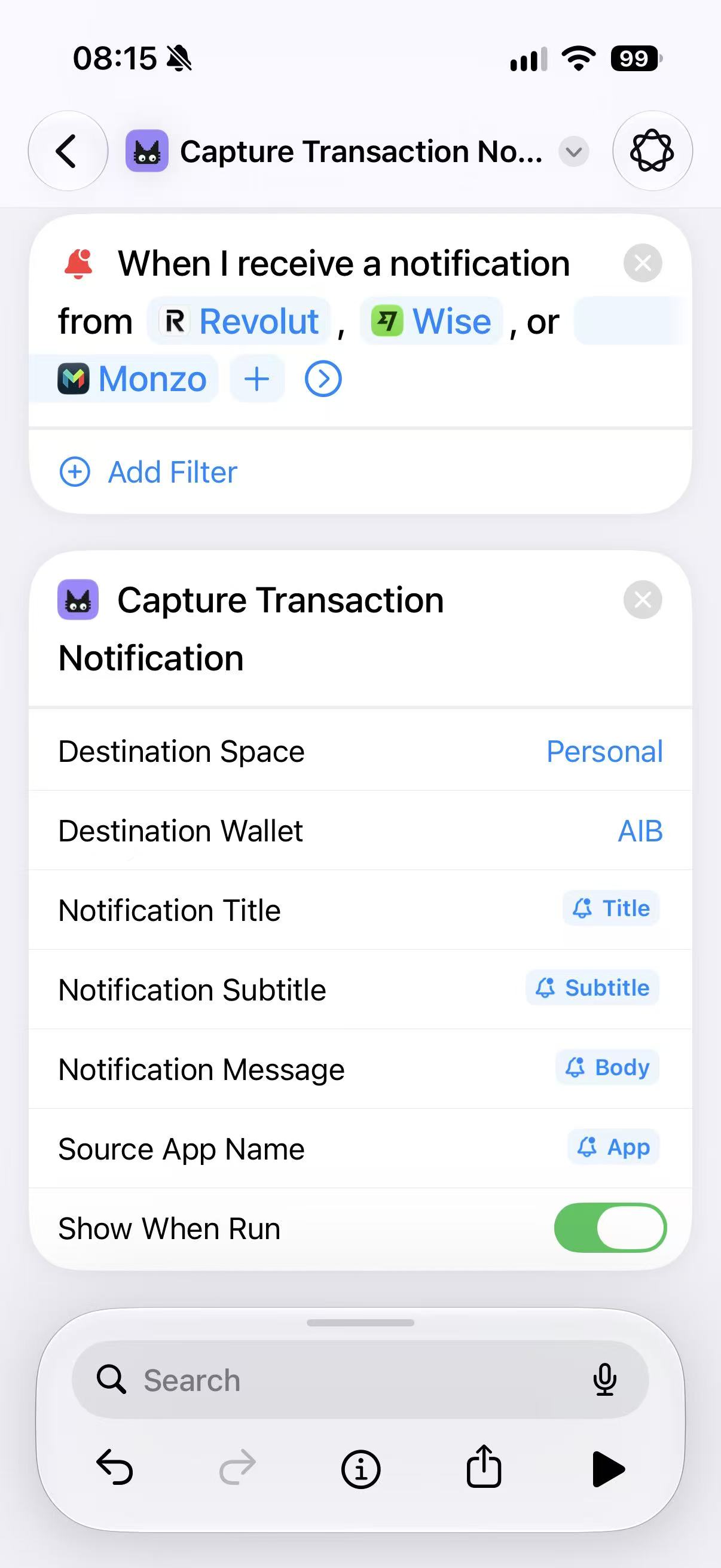
Step 5: Check the Finished Automation
Before you finish setting up the automation, compare your action with the example image:
- The trigger says When I receive a notification from.
- The bank or payment apps you chose are listed in the trigger.
- The action is Capture Transaction Notification.
- The Destination Space is correct.
- The Destination Wallet is correct.
- Notification Title uses Title.
- Notification Subtitle uses Subtitle.
- Notification Message uses Body.
- Source App Name uses App.
Keep Show When Run enabled if you want to see the action's result while testing. After you have confirmed that everything works, you can adjust that Shortcuts option to suit your preference.
Step 6: Test It Safely
Make a small, real purchase with one of the selected apps, then wait for that app's completed-payment notification.
The notification should contain enough information for Moneko to understand what happened, such as the merchant or source, amount, currency, and a completed-payment message. Moneko checks the notification and then shows a result from the Shortcut.
The result can mean:
- Captured: Moneko accepted the completed transaction and saved it.
- No completed transaction to save: Moneko checked the notification but it was a promotion, pending event, declined payment, transfer, or another unsupported or unclear message.
- Already checked: duplicate protection prevented the same notification from being saved twice.
- Saved for later: the notification was queued securely because Moneko could not reach the service at that moment.
Open Moneko and check the selected Space and Wallet after a successful test.
What Moneko Does and Does Not Capture
Moneko can process a notification when it contains enough evidence of a completed financial event. Depending on the notification, this may include an expense, income, refund, or recurring payment.
Moneko intentionally does not save every notification. It may ignore:
- Promotions and marketing messages.
- Pending, declined, or reversed events that do not confirm a completed transaction.
- Transfers between your own accounts or wallets.
- Credit-card payment messages that represent paying a card balance rather than a purchase.
- Notifications that do not contain enough reliable information.
This check helps prevent false transactions from appearing in your budget.
Privacy and Security
- You choose which apps can trigger the automation.
- Apple provides the selected notification values to the Shortcut when the trigger runs.
- Moneko receives the notification title, subtitle, message, and source app that the action passes to it.
- Moneko checks the notification before saving anything.
- Moneko uses duplicate protection so the same notification is not saved twice.
- If a temporary network or session problem prevents an immediate request, Moneko can keep the capture in a secure pending queue for later synchronization.
Moneko does not connect directly to your bank or card for this feature.
Related capture methods
- Set up Apple Pay transaction capture with the Wallet Shortcut
- Capture transactions from Android notifications
- Use Quick Actions and Siri Shortcuts
Troubleshooting
I cannot find Apple Pay Integration
Update Moneko, then open Moneko → Settings. On iPhone, the integration is named Apple Pay Integration even when you are setting up notification capture.
If the feature is locked, your current Moneko plan may not include it.
I cannot find the Notification trigger
This automation requires iOS 27 or later. Check Settings → General → Software Update, then update Moneko as well. Earlier iOS versions do not support this notification automation trigger.
The notification never starts the automation
Check that:
- Notifications are enabled for the bank or payment app.
- The correct app is selected in the Shortcuts Notification trigger.
- The automation is saved and enabled.
- The bank or payment app actually displays the completed payment details in the notification.
The Moneko action is missing
Tap Add Action, search for Moneko, and choose Capture Transaction Notification. If it is still missing, update Moneko and reopen Shortcuts after opening the Moneko integration page.
Moneko receives the notification but does not save a transaction
Confirm that the notification describes a completed transaction and includes enough information to identify it. Moneko may ignore pending, declined, promotional, internal-transfer, card-payment, or unclear notifications by design.
The amount, merchant, or app is missing
Check the variable mapping:
- Notification Title → Title
- Notification Subtitle → Subtitle
- Notification Message → Body
- Source App Name → App
Also check the original notification. If the app only says something general such as “You have a new alert,” Shortcuts cannot pass details that the notification does not contain.
Transactions are going to the wrong place
Edit the Capture Transaction Notification action and check Destination Space and Destination Wallet. The selected Wallet should belong to the selected Space. Save the automation again after changing either value.
I was offline when the notification arrived
Moneko may save the capture in its secure pending queue and retry it later. Reopen Moneko with an internet connection so pending captures can synchronize. If the notification was not queued successfully, run the test again after reconnecting.
Frequently Asked Questions
Yes. On iOS 27 or later, configure a Shortcuts notification automation for the apps you choose and add Moneko's Capture Transaction Notification action. Moneko checks the selected notification details and saves a supported completed transaction. This is not bank syncing or access to every notification on your iPhone.