'%3e%3cg%20filter='url(%23filter0_i_679_862)'%3e%3ccircle%20cx='47.3083'%20cy='88.4997'%20r='11.3083'%20fill='url(%23paint0_radial_679_862)'/%3e%3c/g%3e%3ccircle%20cx='50.0719'%20cy='91.9742'%20r='4.025'%20fill='%231B1B1B'/%3e%3cg%20style='mix-blend-mode:color-dodge'%3e%3ccircle%20cx='47.3893'%20cy='90.0612'%20r='1.91667'%20fill='%23D9D9D9'/%3e%3c/g%3e%3c/g%3e%3cg%20clip-path='url(%23clip1_679_862)'%3e%3cg%20filter='url(%23filter1_i_679_862)'%3e%3ccircle%20cx='81.6443'%20cy='88.4997'%20r='11.3083'%20fill='url(%23paint1_radial_679_862)'/%3e%3c/g%3e%3ccircle%20cx='84.4039'%20cy='91.9742'%20r='4.025'%20fill='%231B1B1B'/%3e%3cg%20style='mix-blend-mode:color-dodge'%3e%3ccircle%20cx='81.7214'%20cy='90.0612'%20r='1.91667'%20fill='%23D9D9D9'/%3e%3c/g%3e%3c/g%3e%3cdefs%3e%3cfilter%20id='filter0_i_679_862'%20x='36'%20y='75.1711'%20width='23.6273'%20height='24.6375'%20filterUnits='userSpaceOnUse'%20color-interpolation-filters='sRGB'%3e%3cfeFlood%20flood-opacity='0'%20result='BackgroundImageFix'/%3e%3cfeBlend%20mode='normal'%20in='SourceGraphic'%20in2='BackgroundImageFix'%20result='shape'/%3e%3cfeColorMatrix%20in='SourceAlpha'%20type='matrix'%20values='0%200%200%200%200%200%200%200%200%200%200%200%200%200%200%200%200%200%20127%200'%20result='hardAlpha'/%3e%3cfeOffset%20dx='1.01015'%20dy='-2.02031'/%3e%3cfeGaussianBlur%20stdDeviation='1.01015'/%3e%3cfeComposite%20in2='hardAlpha'%20operator='arithmetic'%20k2='-1'%20k3='1'/%3e%3cfeColorMatrix%20type='matrix'%20values='0%200%200%200%200%200%200%200%200%200%200%200%200%200%200%200%200%200%200.15%200'/%3e%3cfeBlend%20mode='normal'%20in2='shape'%20result='effect1_innerShadow_679_862'/%3e%3c/filter%3e%3cfilter%20id='filter1_i_679_862'%20x='70.3359'%20y='75.1711'%20width='23.6273'%20height='24.6375'%20filterUnits='userSpaceOnUse'%20color-interpolation-filters='sRGB'%3e%3cfeFlood%20flood-opacity='0'%20result='BackgroundImageFix'/%3e%3cfeBlend%20mode='normal'%20in='SourceGraphic'%20in2='BackgroundImageFix'%20result='shape'/%3e%3cfeColorMatrix%20in='SourceAlpha'%20type='matrix'%20values='0%200%200%200%200%200%200%200%200%200%200%200%200%200%200%200%200%200%20127%200'%20result='hardAlpha'/%3e%3cfeOffset%20dx='1.01015'%20dy='-2.02031'/%3e%3cfeGaussianBlur%20stdDeviation='1.01015'/%3e%3cfeComposite%20in2='hardAlpha'%20operator='arithmetic'%20k2='-1'%20k3='1'/%3e%3cfeColorMatrix%20type='matrix'%20values='0%200%200%200%200%200%200%200%200%200%200%200%200%200%200%200%200%200%200.15%200'/%3e%3cfeBlend%20mode='normal'%20in2='shape'%20result='effect1_innerShadow_679_862'/%3e%3c/filter%3e%3cradialGradient%20id='paint0_radial_679_862'%20cx='0'%20cy='0'%20r='1'%20gradientUnits='userSpaceOnUse'%20gradientTransform='translate(47.3083%2088.4997)%20rotate(29.2803)%20scale(11.9552)'%3e%3cstop%20offset='0.634615'%20stop-color='white'/%3e%3cstop%20offset='1'%20stop-color='%23A8FFEA'/%3e%3c/radialGradient%3e%3cradialGradient%20id='paint1_radial_679_862'%20cx='0'%20cy='0'%20r='1'%20gradientUnits='userSpaceOnUse'%20gradientTransform='translate(81.6443%2088.4997)%20rotate(29.2803)%20scale(11.9552)'%3e%3cstop%20offset='0.634615'%20stop-color='white'/%3e%3cstop%20offset='1'%20stop-color='%23A8FFEA'/%3e%3c/radialGradient%3e%3cclipPath%20id='clip0_679_862'%3e%3crect%20width='22.6167'%20height='22.6167'%20fill='white'%20transform='translate(36%2077.1914)'/%3e%3c/clipPath%3e%3cclipPath%20id='clip1_679_862'%3e%3crect%20width='22.6167'%20height='22.6167'%20fill='white'%20transform='translate(70.3359%2077.1914)'/%3e%3c/clipPath%3e%3c/defs%3e%3c/svg%3e)
How to Use Quick Actions and Siri Shortcuts in Moneko
Learn how to log expenses faster in Moneko using Press & Hold Quick Action and Siri Shortcuts. Open voice, receipt photo, or quick text logging with fewer steps.
How to Use Quick Actions and Siri Shortcuts in Moneko
You can speed up how you log expenses in Moneko with Quick Actions and Siri Shortcuts.
These features reduce extra taps, so logging feels faster and more natural.
Use them when you want to:
- start voice logging faster
- open receipt photo logging quickly
- jump straight into quick text entry
- log expenses without opening Moneko
Press & Hold Quick Action
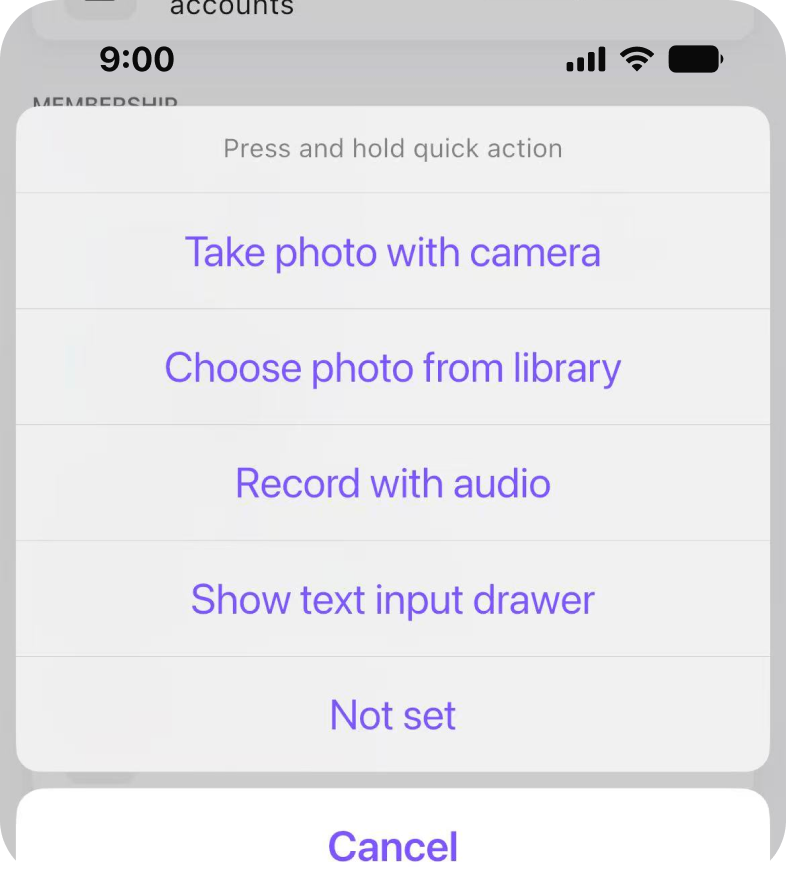
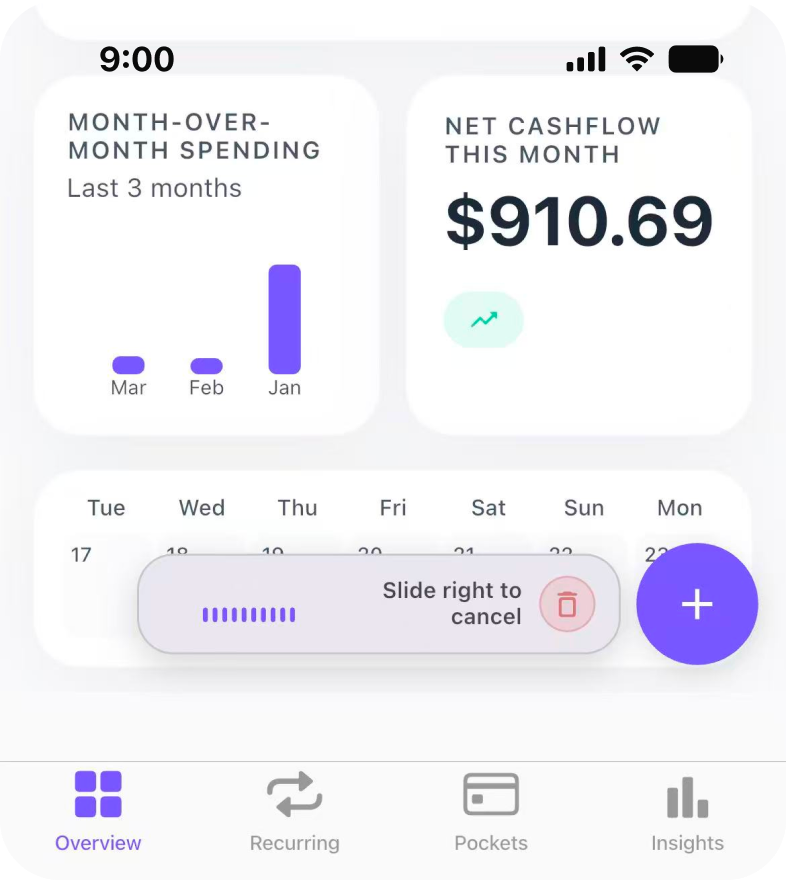
The Press & Hold Quick Action lets you choose what happens when you press and hold the + button.
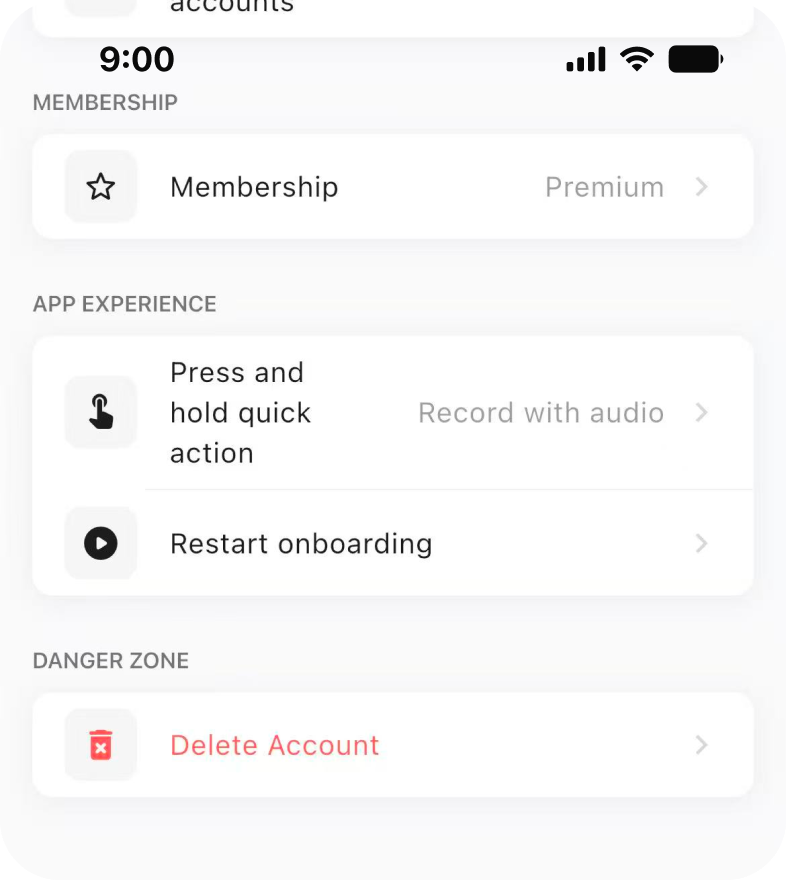
Instead of tapping through extra steps, Moneko opens directly in your selected logging mode.
You can choose:
- Voice
- Receipt photo
- Quick text
How to Set Your Default Quick Action
To choose what happens when you press and hold the + button:
- Open Moneko.
- Tap the top right three dots.
- Go to Settings.
- Tap Press and hold quick action.
- Select your preferred option.
Expected Result
Your selected action becomes the default for pressing and holding the + button.
How to Use Press & Hold Quick Action
After setup:
- Press and hold the + button.
- Moneko opens directly in your selected logging mode.
No extra taps needed.
Example
If you choose Receipt photo, pressing and holding the + button opens receipt photo logging directly.
Siri Shortcuts
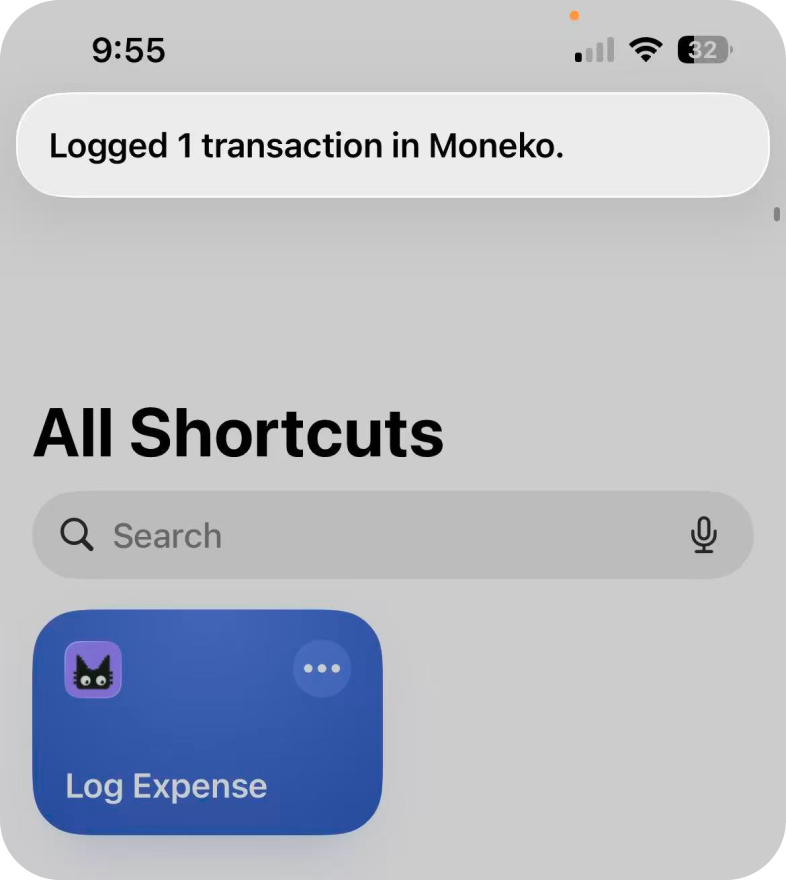
Siri Shortcuts let you log expenses without opening Moneko.
This is useful when you want to log something quickly while walking, paying, or using your phone from the lock screen.
How to Set Up a Siri Shortcut for Moneko
To set up the shortcut:
- Open the Shortcuts app.
- Tap the + button.
- Search for Moneko.
- Add Log Expense.
Expected Result
The Log Expense shortcut is added to your Shortcuts app.
How to Use the Moneko Siri Shortcut
After setup, you can:
- run it from the Shortcuts app
- add it to your Home Screen
- say “Hey Siri, log expense”
- use it from the lock screen
Expected Result
Moneko starts the expense logging flow without requiring you to open the app manually.
Troubleshooting Common Issues
Press and Hold Does Not Open My Preferred Mode
Check your selected quick action:
Moneko → top right three dots → Settings → Press and hold quick action
Then select your preferred option again.
I Cannot Find Press and Hold Quick Action
Open Moneko, tap the top right three dots, go to Settings, then look for Press and hold quick action.
I Cannot Find Moneko in the Shortcuts App
Open the Shortcuts app, tap the + button, then search for Moneko.
Siri Does Not Start Expense Logging
Check that Log Expense has been added in the Shortcuts app.
Then try saying:
- “Hey Siri, log expense”
I Want to Log from the Lock Screen
Set up Log Expense in the Shortcuts app first.
After setup, you can use it from the lock screen.
Frequently Asked Questions
Press & Hold Quick Action lets you choose what happens when you press and hold the + button.