'%3e%3cg%20filter='url(%23filter0_i_679_862)'%3e%3ccircle%20cx='47.3083'%20cy='88.4997'%20r='11.3083'%20fill='url(%23paint0_radial_679_862)'/%3e%3c/g%3e%3ccircle%20cx='50.0719'%20cy='91.9742'%20r='4.025'%20fill='%231B1B1B'/%3e%3cg%20style='mix-blend-mode:color-dodge'%3e%3ccircle%20cx='47.3893'%20cy='90.0612'%20r='1.91667'%20fill='%23D9D9D9'/%3e%3c/g%3e%3c/g%3e%3cg%20clip-path='url(%23clip1_679_862)'%3e%3cg%20filter='url(%23filter1_i_679_862)'%3e%3ccircle%20cx='81.6443'%20cy='88.4997'%20r='11.3083'%20fill='url(%23paint1_radial_679_862)'/%3e%3c/g%3e%3ccircle%20cx='84.4039'%20cy='91.9742'%20r='4.025'%20fill='%231B1B1B'/%3e%3cg%20style='mix-blend-mode:color-dodge'%3e%3ccircle%20cx='81.7214'%20cy='90.0612'%20r='1.91667'%20fill='%23D9D9D9'/%3e%3c/g%3e%3c/g%3e%3cdefs%3e%3cfilter%20id='filter0_i_679_862'%20x='36'%20y='75.1711'%20width='23.6273'%20height='24.6375'%20filterUnits='userSpaceOnUse'%20color-interpolation-filters='sRGB'%3e%3cfeFlood%20flood-opacity='0'%20result='BackgroundImageFix'/%3e%3cfeBlend%20mode='normal'%20in='SourceGraphic'%20in2='BackgroundImageFix'%20result='shape'/%3e%3cfeColorMatrix%20in='SourceAlpha'%20type='matrix'%20values='0%200%200%200%200%200%200%200%200%200%200%200%200%200%200%200%200%200%20127%200'%20result='hardAlpha'/%3e%3cfeOffset%20dx='1.01015'%20dy='-2.02031'/%3e%3cfeGaussianBlur%20stdDeviation='1.01015'/%3e%3cfeComposite%20in2='hardAlpha'%20operator='arithmetic'%20k2='-1'%20k3='1'/%3e%3cfeColorMatrix%20type='matrix'%20values='0%200%200%200%200%200%200%200%200%200%200%200%200%200%200%200%200%200%200.15%200'/%3e%3cfeBlend%20mode='normal'%20in2='shape'%20result='effect1_innerShadow_679_862'/%3e%3c/filter%3e%3cfilter%20id='filter1_i_679_862'%20x='70.3359'%20y='75.1711'%20width='23.6273'%20height='24.6375'%20filterUnits='userSpaceOnUse'%20color-interpolation-filters='sRGB'%3e%3cfeFlood%20flood-opacity='0'%20result='BackgroundImageFix'/%3e%3cfeBlend%20mode='normal'%20in='SourceGraphic'%20in2='BackgroundImageFix'%20result='shape'/%3e%3cfeColorMatrix%20in='SourceAlpha'%20type='matrix'%20values='0%200%200%200%200%200%200%200%200%200%200%200%200%200%200%200%200%200%20127%200'%20result='hardAlpha'/%3e%3cfeOffset%20dx='1.01015'%20dy='-2.02031'/%3e%3cfeGaussianBlur%20stdDeviation='1.01015'/%3e%3cfeComposite%20in2='hardAlpha'%20operator='arithmetic'%20k2='-1'%20k3='1'/%3e%3cfeColorMatrix%20type='matrix'%20values='0%200%200%200%200%200%200%200%200%200%200%200%200%200%200%200%200%200%200.15%200'/%3e%3cfeBlend%20mode='normal'%20in2='shape'%20result='effect1_innerShadow_679_862'/%3e%3c/filter%3e%3cradialGradient%20id='paint0_radial_679_862'%20cx='0'%20cy='0'%20r='1'%20gradientUnits='userSpaceOnUse'%20gradientTransform='translate(47.3083%2088.4997)%20rotate(29.2803)%20scale(11.9552)'%3e%3cstop%20offset='0.634615'%20stop-color='white'/%3e%3cstop%20offset='1'%20stop-color='%23A8FFEA'/%3e%3c/radialGradient%3e%3cradialGradient%20id='paint1_radial_679_862'%20cx='0'%20cy='0'%20r='1'%20gradientUnits='userSpaceOnUse'%20gradientTransform='translate(81.6443%2088.4997)%20rotate(29.2803)%20scale(11.9552)'%3e%3cstop%20offset='0.634615'%20stop-color='white'/%3e%3cstop%20offset='1'%20stop-color='%23A8FFEA'/%3e%3c/radialGradient%3e%3cclipPath%20id='clip0_679_862'%3e%3crect%20width='22.6167'%20height='22.6167'%20fill='white'%20transform='translate(36%2077.1914)'/%3e%3c/clipPath%3e%3cclipPath%20id='clip1_679_862'%3e%3crect%20width='22.6167'%20height='22.6167'%20fill='white'%20transform='translate(70.3359%2077.1914)'/%3e%3c/clipPath%3e%3c/defs%3e%3c/svg%3e)
How to Automatically Track Apple Pay Transactions in Moneko
Learn how to automatically track Apple Pay transactions in Moneko using iOS Shortcuts. Set up Wallet automation, map the amount and merchant, and log purchases automatically.
How to Automatically Track Apple Pay Transactions in Moneko
You can automatically track your Apple Pay transactions in Moneko.
Once set up, every Apple Pay purchase shows up automatically.
No manual input.
No extra friction.
Just tap, pay, and it is logged.
This setup works through iOS Shortcuts automation.
Before You Start
Make sure Moneko is updated to the latest version before setting up Apple Pay transaction tracking.
You will need to set up the automation once. After that, your Apple Pay purchases will be tracked automatically in Moneko.
Step 1: Open Apple Pay Integration in Moneko
- Open Moneko.
- Go to Settings.
- Tap Apple Pay Integration.
- Tap Start Setup.
Expected Result
Moneko opens the Apple Pay setup flow and guides you toward the Shortcuts automation setup.
Step 2: Open Shortcuts
- Tap Open Shortcuts.
- Go to the Automation tab at the bottom.
Expected Result
You are now in the Shortcuts app, ready to create the automation.
Step 3: Create a Personal Automation
- Tap the + button.
- Select Create Personal Automation.
- Choose Wallet as the trigger.
- Tap Next.
Expected Result
The automation is now set to run when a Wallet transaction happens.
Step 4: Create New Shortcut
- Tap Create New Shortcut first.
- Then choose Capture Wallet Transaction from the list.
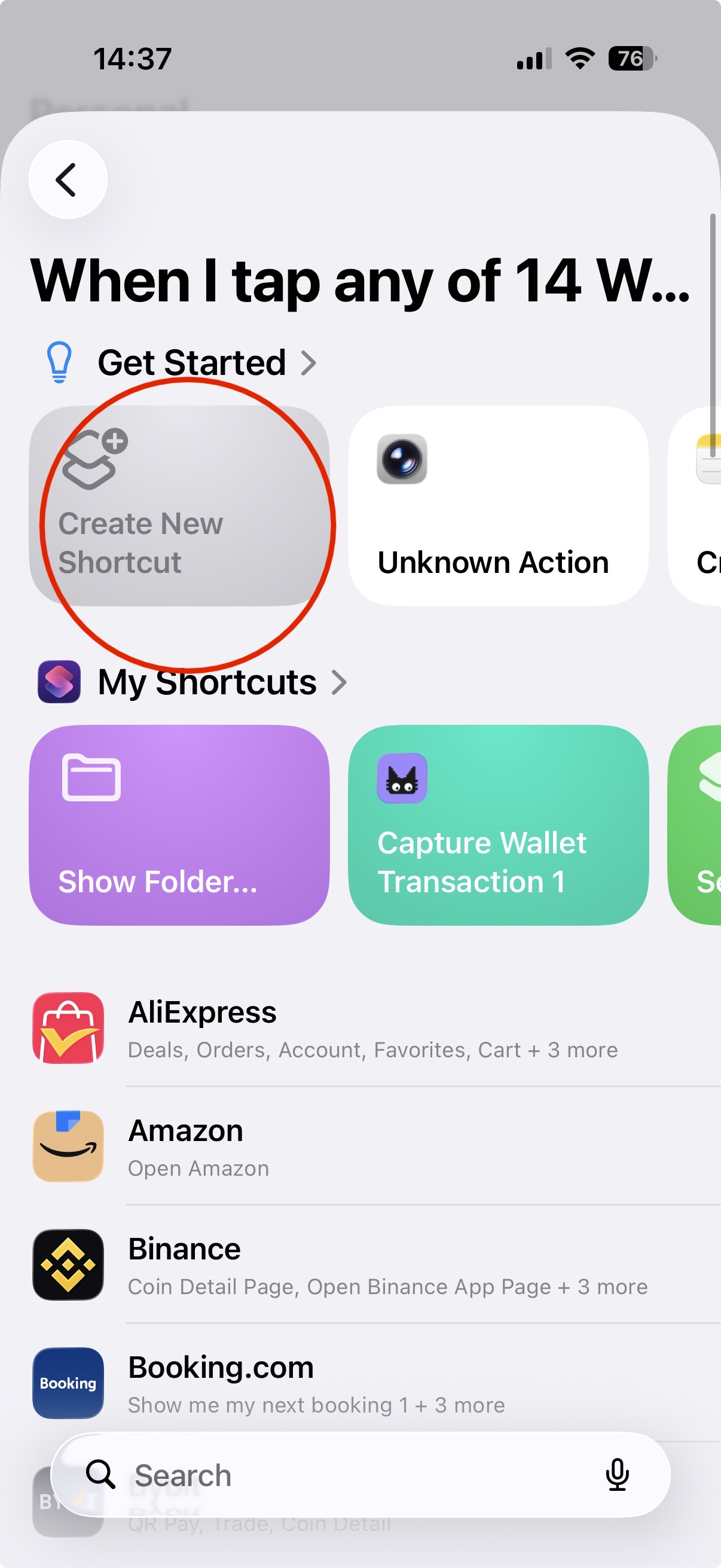
Expected Result
The shortcut workflow is initialized correctly and the Moneko action is ready to be configured.
Step 5: Add the Moneko Action
- Tap Add Action.
- Search for Moneko.
- Select Capture Wallet Transaction.
Expected Result
The Moneko action is added to your automation.
Step 6: Map the Transaction Amount
- Tap Amount.
- Select Select Variable.
- Choose Shortcut Input.
- Tap the variable again.
- Select Amount.
Expected Result
The Apple Pay transaction amount is connected to the Moneko action.
Step 7: Map the Merchant Name
- Tap Merchant.
- Select Select Variable.
- Choose Shortcut Input.
- Tap the variable again.
- Select Merchant.
Expected Result
The Apple Pay merchant name is connected to the Moneko action.
Step 8: Save and Enable the Automation
- Tap the check icon to save.
- Open the automation again.
- Turn on Run Immediately.
- Disable Ask Before Running if prompted.
Expected Result
The automation is saved and allowed to run automatically.
Step 9: Finish Setup
You are done.
Now every Apple Pay transaction will be logged automatically in Moneko.
Expected Result
When you make a purchase with Apple Pay, Moneko captures the transaction automatically through the Shortcuts automation.
Good to Know
Your Data Stays Secure
Your data is stored securely and never shared.
Moneko Does Not Access Your Bank or Card Directly
Moneko does not connect directly to your bank or card for this feature.
Apple Pay transaction tracking works using iOS Shortcuts automation.
You Only Need to Set It Up Once
After the automation is created and enabled, your Apple Pay purchases will be tracked automatically in Moneko.
Troubleshooting Common Issues
I Cannot Find Apple Pay Integration in Moneko
Make sure you have updated Moneko to the latest version.
Then go to:
Moneko → Settings → Apple Pay Integration
I Cannot Find the Automation Tab
Open the Shortcuts app and look for the Automation tab at the bottom.
I Cannot Find Wallet as a Trigger
When creating a Personal Automation, choose Wallet as the trigger.
I Cannot Find the Moneko Action
In Shortcuts, tap Add Action, then search for Moneko.
Choose Capture Wallet Transaction.
My Transaction Amount Is Not Being Captured
Check that Amount is mapped correctly:
Amount → Select Variable → Shortcut Input → Amount
My Merchant Name Is Not Being Captured
Check that Merchant is mapped correctly:
Merchant → Select Variable → Shortcut Input → Merchant
The Automation Asks Before Running
Open the automation again and turn on Run Immediately.
If prompted, disable Ask Before Running.
Apple Pay Transactions Are Not Logging Automatically
Check that:
- Moneko is updated to the latest version
- the Wallet automation was created
- you tapped Create New Shortcut before choosing the action
- the Capture Wallet Transaction action was added
- Amount is mapped to Shortcut Input → Amount
- Merchant is mapped to Shortcut Input → Merchant
- Run Immediately is turned on
- Ask Before Running is disabled if prompted
The Shortcut Is Not Asking Me to Map Fields
You need to tap Create New Shortcut first, then select Capture Wallet Transactions from the list. If you skip the "Create New Shortcut" step and try to add the action directly, the Shortcuts app may not prompt you to configure the required fields (merchant, amount, and date). Starting with "Create New Shortcut" ensures the workflow is initialized correctly and the mapping step appears as expected.
Frequently Asked Questions
Yes. Moneko can automatically track Apple Pay transactions using iOS Shortcuts automation.