'%3e%3cg%20filter='url(%23filter0_i_679_862)'%3e%3ccircle%20cx='47.3083'%20cy='88.4997'%20r='11.3083'%20fill='url(%23paint0_radial_679_862)'/%3e%3c/g%3e%3ccircle%20cx='50.0719'%20cy='91.9742'%20r='4.025'%20fill='%231B1B1B'/%3e%3cg%20style='mix-blend-mode:color-dodge'%3e%3ccircle%20cx='47.3893'%20cy='90.0612'%20r='1.91667'%20fill='%23D9D9D9'/%3e%3c/g%3e%3c/g%3e%3cg%20clip-path='url(%23clip1_679_862)'%3e%3cg%20filter='url(%23filter1_i_679_862)'%3e%3ccircle%20cx='81.6443'%20cy='88.4997'%20r='11.3083'%20fill='url(%23paint1_radial_679_862)'/%3e%3c/g%3e%3ccircle%20cx='84.4039'%20cy='91.9742'%20r='4.025'%20fill='%231B1B1B'/%3e%3cg%20style='mix-blend-mode:color-dodge'%3e%3ccircle%20cx='81.7214'%20cy='90.0612'%20r='1.91667'%20fill='%23D9D9D9'/%3e%3c/g%3e%3c/g%3e%3cdefs%3e%3cfilter%20id='filter0_i_679_862'%20x='36'%20y='75.1711'%20width='23.6273'%20height='24.6375'%20filterUnits='userSpaceOnUse'%20color-interpolation-filters='sRGB'%3e%3cfeFlood%20flood-opacity='0'%20result='BackgroundImageFix'/%3e%3cfeBlend%20mode='normal'%20in='SourceGraphic'%20in2='BackgroundImageFix'%20result='shape'/%3e%3cfeColorMatrix%20in='SourceAlpha'%20type='matrix'%20values='0%200%200%200%200%200%200%200%200%200%200%200%200%200%200%200%200%200%20127%200'%20result='hardAlpha'/%3e%3cfeOffset%20dx='1.01015'%20dy='-2.02031'/%3e%3cfeGaussianBlur%20stdDeviation='1.01015'/%3e%3cfeComposite%20in2='hardAlpha'%20operator='arithmetic'%20k2='-1'%20k3='1'/%3e%3cfeColorMatrix%20type='matrix'%20values='0%200%200%200%200%200%200%200%200%200%200%200%200%200%200%200%200%200%200.15%200'/%3e%3cfeBlend%20mode='normal'%20in2='shape'%20result='effect1_innerShadow_679_862'/%3e%3c/filter%3e%3cfilter%20id='filter1_i_679_862'%20x='70.3359'%20y='75.1711'%20width='23.6273'%20height='24.6375'%20filterUnits='userSpaceOnUse'%20color-interpolation-filters='sRGB'%3e%3cfeFlood%20flood-opacity='0'%20result='BackgroundImageFix'/%3e%3cfeBlend%20mode='normal'%20in='SourceGraphic'%20in2='BackgroundImageFix'%20result='shape'/%3e%3cfeColorMatrix%20in='SourceAlpha'%20type='matrix'%20values='0%200%200%200%200%200%200%200%200%200%200%200%200%200%200%200%200%200%20127%200'%20result='hardAlpha'/%3e%3cfeOffset%20dx='1.01015'%20dy='-2.02031'/%3e%3cfeGaussianBlur%20stdDeviation='1.01015'/%3e%3cfeComposite%20in2='hardAlpha'%20operator='arithmetic'%20k2='-1'%20k3='1'/%3e%3cfeColorMatrix%20type='matrix'%20values='0%200%200%200%200%200%200%200%200%200%200%200%200%200%200%200%200%200%200.15%200'/%3e%3cfeBlend%20mode='normal'%20in2='shape'%20result='effect1_innerShadow_679_862'/%3e%3c/filter%3e%3cradialGradient%20id='paint0_radial_679_862'%20cx='0'%20cy='0'%20r='1'%20gradientUnits='userSpaceOnUse'%20gradientTransform='translate(47.3083%2088.4997)%20rotate(29.2803)%20scale(11.9552)'%3e%3cstop%20offset='0.634615'%20stop-color='white'/%3e%3cstop%20offset='1'%20stop-color='%23A8FFEA'/%3e%3c/radialGradient%3e%3cradialGradient%20id='paint1_radial_679_862'%20cx='0'%20cy='0'%20r='1'%20gradientUnits='userSpaceOnUse'%20gradientTransform='translate(81.6443%2088.4997)%20rotate(29.2803)%20scale(11.9552)'%3e%3cstop%20offset='0.634615'%20stop-color='white'/%3e%3cstop%20offset='1'%20stop-color='%23A8FFEA'/%3e%3c/radialGradient%3e%3cclipPath%20id='clip0_679_862'%3e%3crect%20width='22.6167'%20height='22.6167'%20fill='white'%20transform='translate(36%2077.1914)'/%3e%3c/clipPath%3e%3cclipPath%20id='clip1_679_862'%3e%3crect%20width='22.6167'%20height='22.6167'%20fill='white'%20transform='translate(70.3359%2077.1914)'/%3e%3c/clipPath%3e%3c/defs%3e%3c/svg%3e)

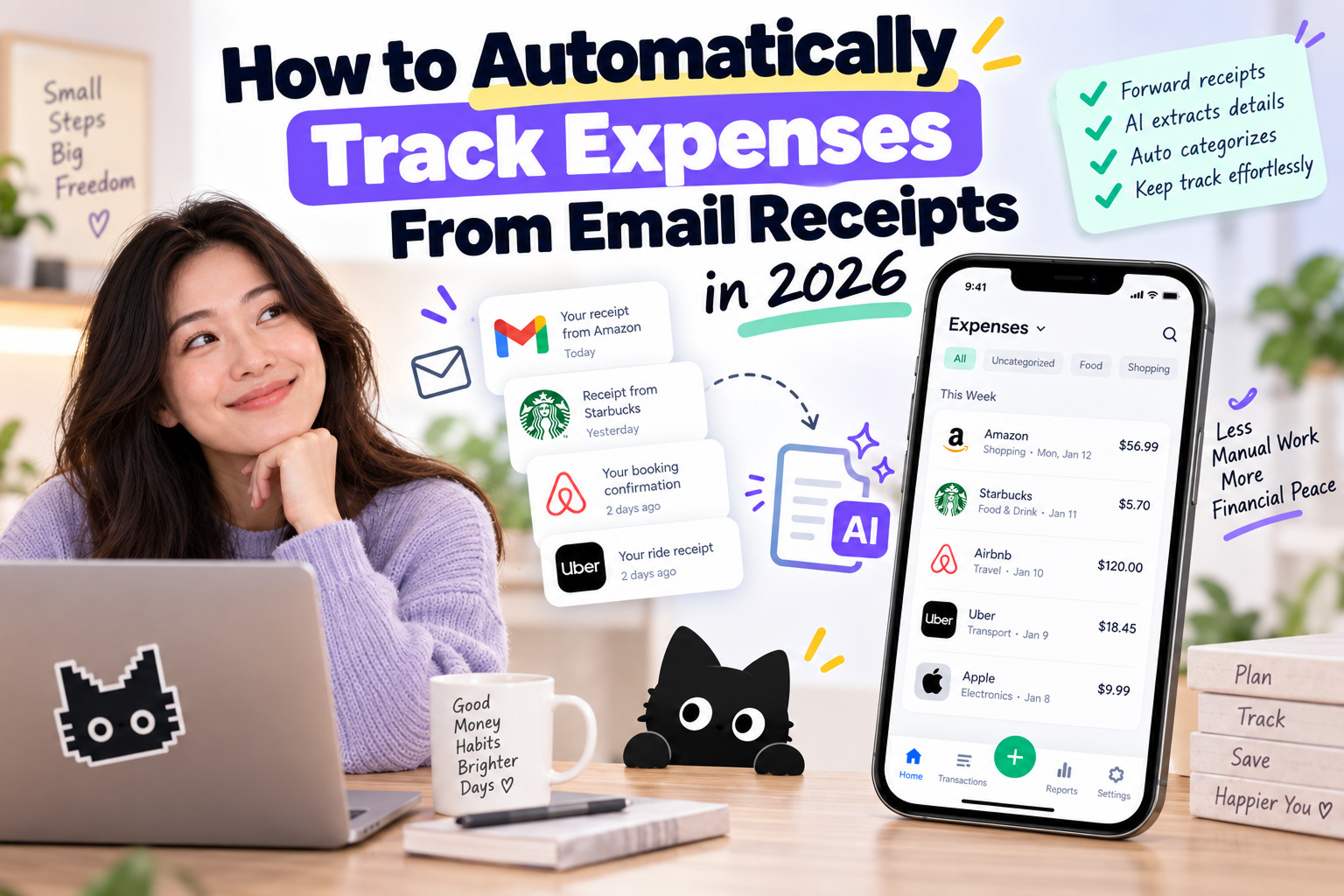
Online purchases already leave behind most of the information you need for expense tracking. Amazon sends an order receipt. Uber emails your trip total. Your software subscriptions send invoices every month. Hotels and airlines send booking receipts with dates and payment details.
The annoying part is entering the same purchase into your budget afterward.
Email receipt capture removes this extra step. With Moneko, you forward a receipt or invoice from your inbox to your personal Moneko receipt address. Moneko processes the email, captures the purchase information, and turns the receipt into an expense.
The workflow becomes:
Purchase → receipt arrives by email → forward to Moneko → expense captured → budget updated
For recurring receipts, Gmail filters take this one step further by automatically forwarding matching emails as they arrive.
How Email Receipt Expense Tracking Works
Suppose you order $68.40 of household supplies online. The receipt already contains the merchant, total, purchase date, currency, and other transaction details.
Instead of opening your budget and recreating the purchase, forward the receipt to Moneko.
| Email Receipt | Expense in Moneko |
|---|---|
| Amazon | Merchant |
| $68.40 | Amount |
| September 7, 2026 | Date |
| CAD | Currency |
| Household supplies | Category |
Moneko processes the forwarded receipt and captures the purchase information. AI helps organize the expense afterward, so the receipt becomes part of your spending history rather than another email sitting in your inbox.
This is especially useful for online purchases because the merchant has already created the financial record. Your job is simply getting the receipt into the same system as the rest of your spending.
How to Track Email Receipts With Moneko
Moneko's Email Receipt Capture gives you a forwarding address for digital receipts and invoices.
1. Turn On Email Receipt Capture
Open Moneko and enable Email Receipt Capture.
Choose the default Space and Wallet where forwarded purchases should go. This determines where Moneko places new expenses captured from your email.
For example, you might choose:
Space: Personal
Wallet: Mastercard
Or for household purchases:
Space: Home
Wallet: Joint Credit Card
This saves you from choosing a destination every time you forward a receipt.
2. Add Your Approved Email Address
Add the email address you'll use to forward receipts.
Approved sender addresses help Moneko recognize which inboxes belong to you. Receipts forwarded from those addresses enter your email capture workflow.
If you use separate personal and work inboxes, add the addresses you plan to use for expense forwarding.
3. Copy Your Moneko Receipt Address
Moneko provides a receipt forwarding address for your account.
Save the address as a contact if you plan to forward receipts frequently. A name such as “Moneko Receipts” makes the address easier to find from Gmail, Apple Mail, Outlook, or another email client.
4. Forward a Receipt
When a digital receipt arrives, forward the email to your Moneko receipt address.
For example:
Amazon receipt → Forward → Moneko Receipts
Moneko processes the receipt or supported attachment and captures relevant purchase information such as merchant, amount, and date.
Instead of manually entering:
Amazon
$68.40
Household
September 7
the receipt becomes the source for the expense.
5. Review the Expense in Moneko
Open Moneko after processing and review the captured transaction.
The purchase now sits alongside expenses recorded through other Moneko input methods, rather than living separately in your email.
This is where email receipt capture becomes more useful than receipt storage alone. The expense feeds into your budget, spending history, and financial insights.
Automatically Forward Email Receipts From Gmail to Moneko
Forwarding a receipt manually already removes most transaction entry. For merchants you use repeatedly, Gmail filters remove the forwarding step too.
The workflow becomes:
Merchant → Gmail → automatic filter → Moneko → expense captured
Google supports automatically forwarding new Gmail messages matching selected filters. Gmail automatic forwarding instructions
Step 1: Add Your Moneko Receipt Address to Gmail
On a computer, open:
Gmail → Settings → See all settings → Forwarding and POP/IMAP
Select Add a forwarding address and enter your Moneko receipt address.
Complete Gmail's verification process before creating your forwarding rules.
Step 2: Find a Merchant You Want to Automate
Start with predictable receipts rather than every message containing the word “receipt.”
For example:
from:uber.com
Or:
from:[email protected] subject:receipt
Other useful searches include:
subject:receipt
subject:invoice
subject:"order confirmation"
filename:pdf invoice
Search first and review the results. Every message returned by the search should be something you're comfortable forwarding.
Step 3: Turn the Search Into a Filter
Open Gmail's advanced search options and enter your criteria.
Select Create filter, then choose Forward it and select your Moneko receipt address.
From then on, new messages matching the filter follow the automated workflow.
For example:
Uber sends receipt → Gmail recognizes Uber → Gmail forwards receipt → Moneko captures expense
No separate expense entry is needed.
Which Email Receipts Should You Automate?
Start with merchants whose emails follow a predictable pattern.
| Purchase | Suggested Setup |
|---|---|
| Monthly software subscription | Automatic forwarding |
| Internet bill | Automatic forwarding |
| Uber receipts | Automatic forwarding |
| Regular online store | Automatic forwarding |
| Hotel booking | Manual forwarding |
| Occasional online purchase | Manual forwarding |
| Shared household purchase | Forward to Moneko, then manage in Shared Space |
Subscriptions are especially good candidates. If the same $18.99 service emails an invoice every month, creating a filter once is easier than recording the same transaction twelve times a year.
Keep unusual purchases manual. You get more control over what enters your expense tracker without giving up automation for predictable spending.
Email Receipt Capture Becomes More Useful for Shared Spending
Email receipts don't always belong to one person's budget.
Suppose you order $124 of household supplies online. The receipt arrives in your personal Gmail account, but the purchase belongs to your household budget.
Moneko combines expense capture with Shared Spaces, so email purchases sit alongside the other spending you manage with a partner, family, roommate, or group.
Instead of:
Receipt in Gmail → manually enter expense → open bill-splitting app → split purchase → update household budget
the expense stays inside the same financial workflow.
This matters for recurring household purchases too. Internet bills, subscriptions, utilities, travel bookings, and online orders often arrive in one person's inbox even though two people share the cost.
Email Receipts Are One Part of Automatic Expense Tracking
Not every purchase produces an email receipt.
A coffee paid through Apple Pay, a cash purchase, a restaurant receipt, and an online subscription all create different types of records. Relying on email alone leaves gaps.
Moneko supports several expense capture methods for this reason:
| Purchase Type | Moneko Tracking Method |
|---|---|
| Online order | Email receipt forwarding |
| Digital invoice | Email receipt forwarding |
| Paper receipt | Receipt photo |
| Cash purchase | Text or voice |
| Purchase sent by message | WhatsApp or Telegram |
| Recurring bill | Recurring expense |
| Shared household purchase | Shared Space |
| Supported financial account | Bank sync |
The goal isn't to force every expense through one method. Use the fastest input for each purchase.
Email forwarding works especially well for spending already documented inside your inbox.
Track Email Receipts Without Connecting Your Bank
Email receipt capture also gives you another route to automatic expense tracking without relying entirely on bank sync.
Bank syncing follows:
Bank → financial data connection → expense tracker
Moneko email capture follows:
Merchant → receipt email → Moneko
The second route only shares the receipts you send from an approved email address.
Coverage is the trade-off. A bank feed includes transactions without digital receipts, while email capture only sees purchases forwarded into Moneko. Combining email receipts with receipt photos, voice entry, messaging, Apple Pay automation, or bank sync covers more of your spending.
Why Forward Receipts to Moneko Instead of Saving Them in Gmail?
Finding a receipt and tracking an expense are different jobs.
Gmail stores the original email. Moneko turns the purchase into financial information you use later.
Once captured, an expense belongs alongside your other spending, budgets, recurring expenses, Shared Spaces, Pockets, and spending insights.
For example, an emailed grocery delivery receipt isn't only proof of purchase. You want to know:
How much have we spent on groceries this month?
How much is left in our household budget?
Is grocery spending higher than last month?
Does my partner share this expense?
The receipt provides the data. Moneko gives the data financial context.
Frequently Asked Questions
How do I track expenses from email receipts?
Forward your digital receipt to an expense tracker with email receipt capture. With Moneko, you use your Moneko receipt address to send supported receipts and invoices into your expense workflow. Purchase information such as merchant, amount, and date is processed from the forwarded receipt.
How do I automatically send Gmail receipts to Moneko?
Add your Moneko receipt address as a Gmail forwarding address, then create filters for merchants or receipt-related emails. Set matching messages to forward to Moneko. Future receipts matching those rules are sent automatically.
Do I need to forward every receipt manually?
No. Manual forwarding works well for occasional purchases. Gmail filters work better for predictable merchants, subscriptions, invoices, and recurring receipt emails.
What types of receipts should I forward to Moneko?
Online shopping receipts, subscription invoices, digital purchases, travel bookings, household orders, and other supported digital receipts are good candidates.
Do I need bank sync to track email receipts?
No. Email Receipt Capture processes forwarded receipts rather than importing the purchase from a connected financial account.
What happens after Moneko captures the receipt?
The purchase becomes part of your expense-tracking workflow. From there, Moneko's budgeting, AI organization, Shared Spaces, Pockets, recurring expenses, and spending insights give the transaction context beyond the original receipt.
Stop Entering Purchases Your Inbox Already Knows About
If Amazon, Uber, a hotel, or a subscription service already emailed you the merchant, amount, and purchase date, entering the same information into your budget adds another step.
Forward the receipt to Moneko instead. For predictable merchants, set up Gmail filters and let new receipts move into your expense workflow automatically.
Combine email receipt capture with receipt photos, voice logging, messaging, Apple Pay tracking, or bank sync for purchases outside your inbox. Your expense tracker stays current while the amount of manual entry gets smaller.
