'%3e%3cg%20filter='url(%23filter0_i_679_862)'%3e%3ccircle%20cx='47.3083'%20cy='88.4997'%20r='11.3083'%20fill='url(%23paint0_radial_679_862)'/%3e%3c/g%3e%3ccircle%20cx='50.0719'%20cy='91.9742'%20r='4.025'%20fill='%231B1B1B'/%3e%3cg%20style='mix-blend-mode:color-dodge'%3e%3ccircle%20cx='47.3893'%20cy='90.0612'%20r='1.91667'%20fill='%23D9D9D9'/%3e%3c/g%3e%3c/g%3e%3cg%20clip-path='url(%23clip1_679_862)'%3e%3cg%20filter='url(%23filter1_i_679_862)'%3e%3ccircle%20cx='81.6443'%20cy='88.4997'%20r='11.3083'%20fill='url(%23paint1_radial_679_862)'/%3e%3c/g%3e%3ccircle%20cx='84.4039'%20cy='91.9742'%20r='4.025'%20fill='%231B1B1B'/%3e%3cg%20style='mix-blend-mode:color-dodge'%3e%3ccircle%20cx='81.7214'%20cy='90.0612'%20r='1.91667'%20fill='%23D9D9D9'/%3e%3c/g%3e%3c/g%3e%3cdefs%3e%3cfilter%20id='filter0_i_679_862'%20x='36'%20y='75.1711'%20width='23.6273'%20height='24.6375'%20filterUnits='userSpaceOnUse'%20color-interpolation-filters='sRGB'%3e%3cfeFlood%20flood-opacity='0'%20result='BackgroundImageFix'/%3e%3cfeBlend%20mode='normal'%20in='SourceGraphic'%20in2='BackgroundImageFix'%20result='shape'/%3e%3cfeColorMatrix%20in='SourceAlpha'%20type='matrix'%20values='0%200%200%200%200%200%200%200%200%200%200%200%200%200%200%200%200%200%20127%200'%20result='hardAlpha'/%3e%3cfeOffset%20dx='1.01015'%20dy='-2.02031'/%3e%3cfeGaussianBlur%20stdDeviation='1.01015'/%3e%3cfeComposite%20in2='hardAlpha'%20operator='arithmetic'%20k2='-1'%20k3='1'/%3e%3cfeColorMatrix%20type='matrix'%20values='0%200%200%200%200%200%200%200%200%200%200%200%200%200%200%200%200%200%200.15%200'/%3e%3cfeBlend%20mode='normal'%20in2='shape'%20result='effect1_innerShadow_679_862'/%3e%3c/filter%3e%3cfilter%20id='filter1_i_679_862'%20x='70.3359'%20y='75.1711'%20width='23.6273'%20height='24.6375'%20filterUnits='userSpaceOnUse'%20color-interpolation-filters='sRGB'%3e%3cfeFlood%20flood-opacity='0'%20result='BackgroundImageFix'/%3e%3cfeBlend%20mode='normal'%20in='SourceGraphic'%20in2='BackgroundImageFix'%20result='shape'/%3e%3cfeColorMatrix%20in='SourceAlpha'%20type='matrix'%20values='0%200%200%200%200%200%200%200%200%200%200%200%200%200%200%200%200%200%20127%200'%20result='hardAlpha'/%3e%3cfeOffset%20dx='1.01015'%20dy='-2.02031'/%3e%3cfeGaussianBlur%20stdDeviation='1.01015'/%3e%3cfeComposite%20in2='hardAlpha'%20operator='arithmetic'%20k2='-1'%20k3='1'/%3e%3cfeColorMatrix%20type='matrix'%20values='0%200%200%200%200%200%200%200%200%200%200%200%200%200%200%200%200%200%200.15%200'/%3e%3cfeBlend%20mode='normal'%20in2='shape'%20result='effect1_innerShadow_679_862'/%3e%3c/filter%3e%3cradialGradient%20id='paint0_radial_679_862'%20cx='0'%20cy='0'%20r='1'%20gradientUnits='userSpaceOnUse'%20gradientTransform='translate(47.3083%2088.4997)%20rotate(29.2803)%20scale(11.9552)'%3e%3cstop%20offset='0.634615'%20stop-color='white'/%3e%3cstop%20offset='1'%20stop-color='%23A8FFEA'/%3e%3c/radialGradient%3e%3cradialGradient%20id='paint1_radial_679_862'%20cx='0'%20cy='0'%20r='1'%20gradientUnits='userSpaceOnUse'%20gradientTransform='translate(81.6443%2088.4997)%20rotate(29.2803)%20scale(11.9552)'%3e%3cstop%20offset='0.634615'%20stop-color='white'/%3e%3cstop%20offset='1'%20stop-color='%23A8FFEA'/%3e%3c/radialGradient%3e%3cclipPath%20id='clip0_679_862'%3e%3crect%20width='22.6167'%20height='22.6167'%20fill='white'%20transform='translate(36%2077.1914)'/%3e%3c/clipPath%3e%3cclipPath%20id='clip1_679_862'%3e%3crect%20width='22.6167'%20height='22.6167'%20fill='white'%20transform='translate(70.3359%2077.1914)'/%3e%3c/clipPath%3e%3c/defs%3e%3c/svg%3e)
How to Use Wallets in Moneko
Learn how to use Wallets in Moneko to track balances, manage cash and bank accounts, transfer money, and connect your spending with Pockets.
How to Use Wallets in Moneko
Wallets let you track your actual money, balances, and net worth in Moneko.
Before, Moneko focused mainly on spending. Now, you can also see how much money you have across your wallets.
Use Wallets to track places where your money lives, such as:
- cash
- bank accounts
- savings
- travel funds
How Spaces, Wallets, and Pockets Connect
Moneko has three layers:
- Spaces → different parts of your life
- Wallets → where your money lives
- Pockets → what you spend on
These layers work together to help you understand both your balance and your spending.
Spaces
A Space is a separate area for a part of your life. It can be Personal, Couple, Trip, or Group. Each Space is independent.
Wallets
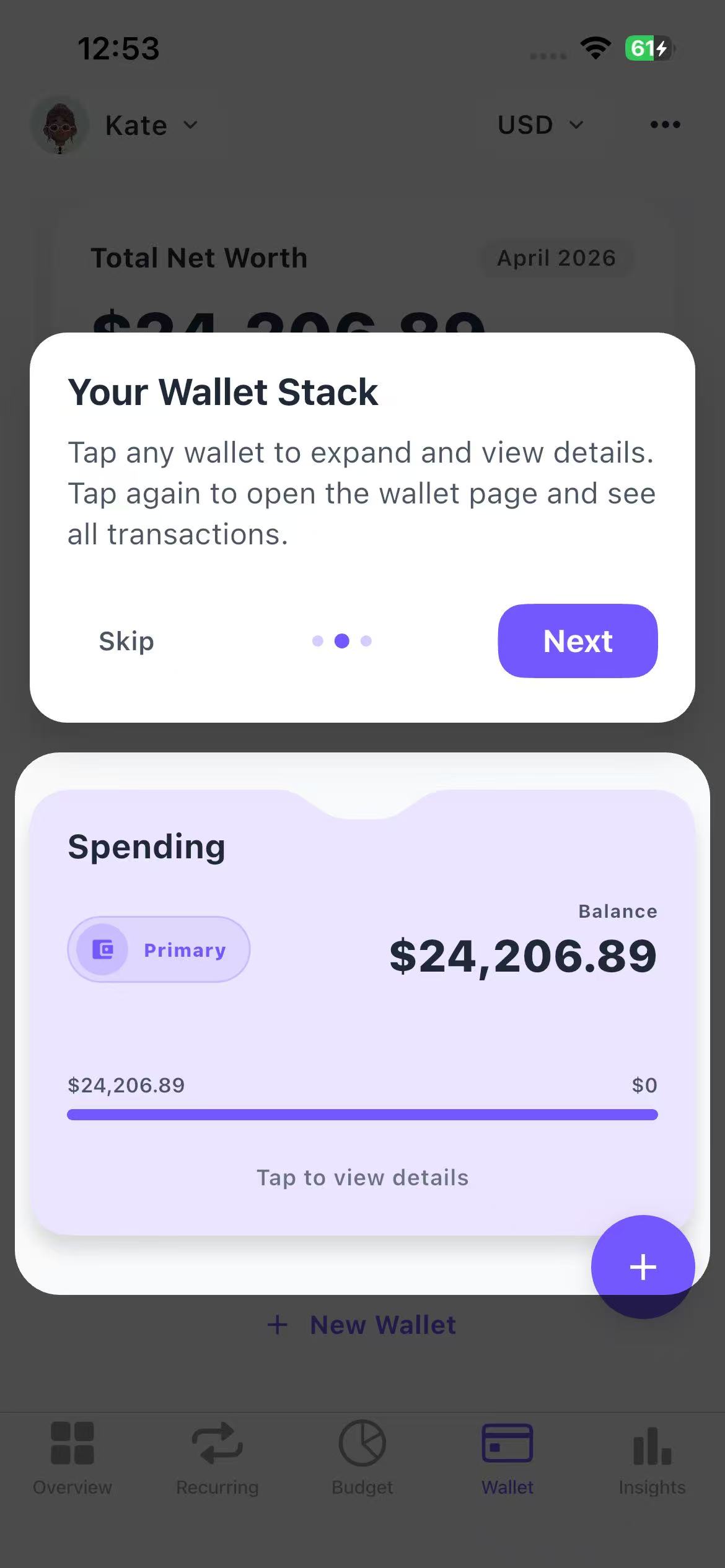
Wallets live inside a Space. Each Space can have multiple wallets. If you share a Space, you also share the wallets inside it. Everyone in the shared Space sees the same balances and transactions.
Currency
Wallet and transaction rows keep their native currency. Aggregate totals can convert included values into the selected display currency.
How to Create a Wallet
To create a new wallet:
- Go to the Wallets tab.
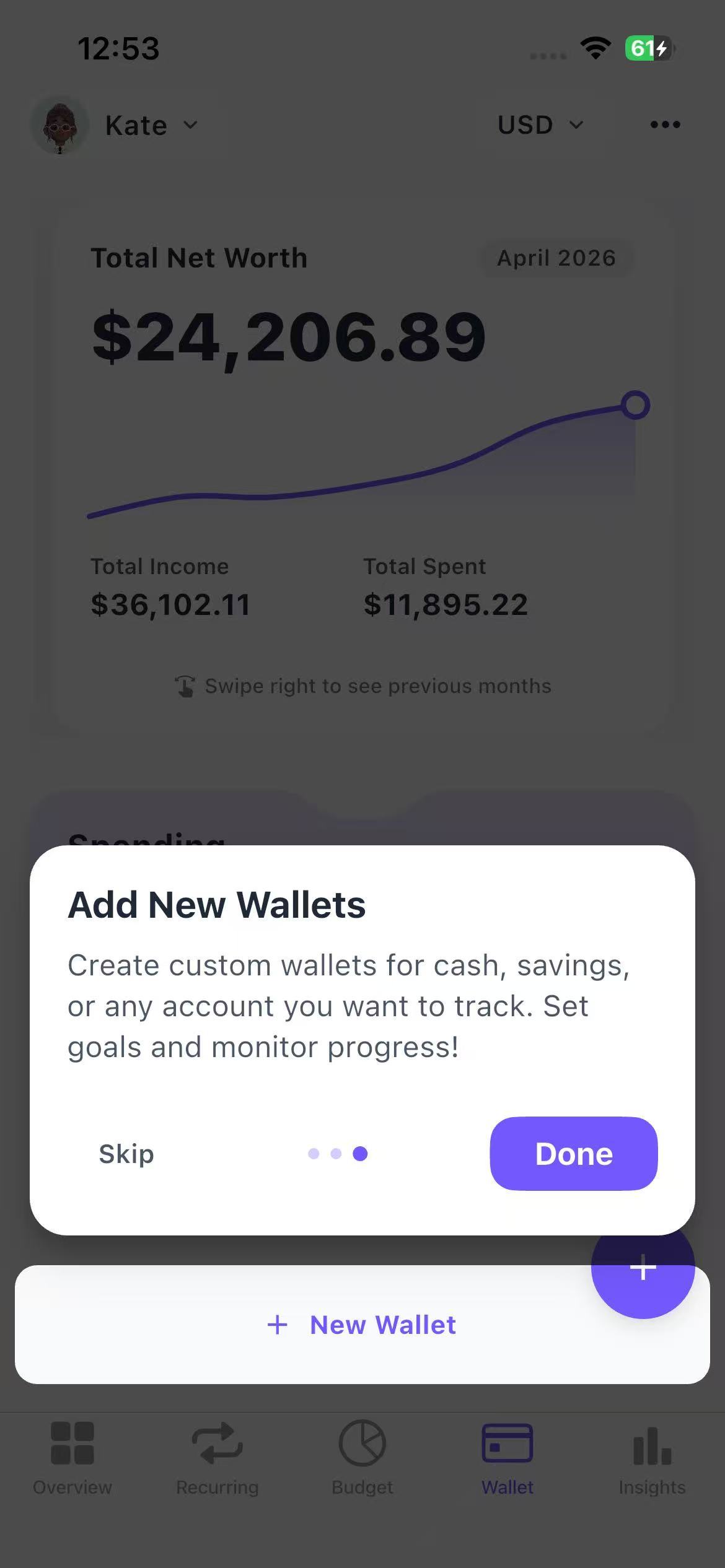
- Tap + New Wallet.
- Enter a wallet name.
- Set an initial balance.
- Choose an icon and color.
- Optional: set a goal.
- Tap Save.
Expected Result
Your new wallet is created inside the current Space and can be used when logging transactions.
What You Can Do with Wallets
See Your Total Balance
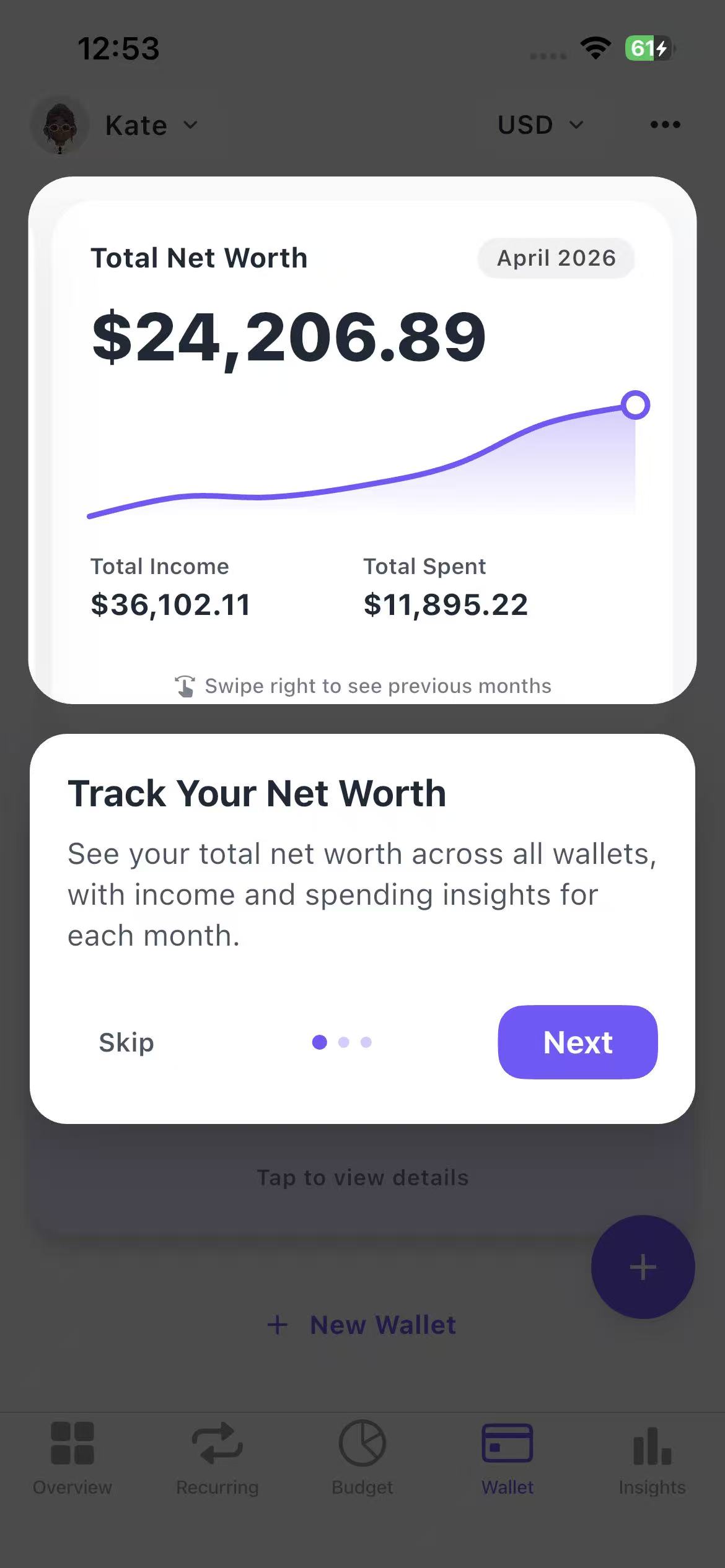
At the top of the Wallets tab, you can see your total balance across all wallets, monthly trend, and total income and spending.
Use Wallets When Logging Transactions
When you log a transaction, you can select a wallet. Each transaction updates both your category and your wallet balance.
Set a Default Wallet
You can set a wallet as your Primary wallet so it is selected automatically when logging.
Transfer Between Wallets
You can move money between wallets with a transfer.
- Go to the Wallets tab.
- Tap Transfer.
- Select From and To.
- Enter the amount.
- Optional: add a note.
- Tap Save.
Expected Result
The transfer updates the balances of both selected wallets.
View Wallet Details
Tap a wallet to see more information, including its balance, recent transactions, and insights.
Track Goals with Wallets
You can set a goal for a wallet. Progress updates automatically as money is added. This is useful for wallets like Savings or a Travel fund.
How Wallets Work with Budgets
Wallets and Pockets work together, but they do different jobs:
- Wallets track where your money is.
- Pockets track what you spend on.
When you spend money:
- Money comes from a wallet.
- The transaction is categorized into a Pocket.
This keeps your balance and budget aligned.
Troubleshooting Common Issues
I Cannot Find My Wallet
Make sure you are in the correct Space. Wallets live inside Spaces, so a wallet created in one Space will not appear in another Space.
My Wallet Balance Looks Wrong
Check whether the transaction was logged to the correct wallet, the initial balance was entered correctly, and transfers were saved correctly.
My Wallet Shows a Negative Balance After Syncing
A negative wallet balance after syncing is usually because Moneko calculates the balance from the transactions Plaid imported, not from your full lifetime bank history.
Available connected-account history can differ by institution and account. If there was already money in the account before the available history, Moneko may not have enough records to explain the starting balance. Imported expenses can then make a Wallet appear negative.
To fix it, set the wallet's opening balance to the account balance from before the imported Plaid transaction period started.
My Shared Space Wallets Are Visible to Other People
This is expected. If you share a Space, you also share the wallets inside it.
I Want One Wallet Selected Automatically
Open the wallet and set it as Primary. It will be selected automatically when logging.
Frequently Asked Questions
Wallets let you track your actual money, balances, and net worth in Moneko.