'%3e%3cg%20filter='url(%23filter0_i_679_862)'%3e%3ccircle%20cx='47.3083'%20cy='88.4997'%20r='11.3083'%20fill='url(%23paint0_radial_679_862)'/%3e%3c/g%3e%3ccircle%20cx='50.0719'%20cy='91.9742'%20r='4.025'%20fill='%231B1B1B'/%3e%3cg%20style='mix-blend-mode:color-dodge'%3e%3ccircle%20cx='47.3893'%20cy='90.0612'%20r='1.91667'%20fill='%23D9D9D9'/%3e%3c/g%3e%3c/g%3e%3cg%20clip-path='url(%23clip1_679_862)'%3e%3cg%20filter='url(%23filter1_i_679_862)'%3e%3ccircle%20cx='81.6443'%20cy='88.4997'%20r='11.3083'%20fill='url(%23paint1_radial_679_862)'/%3e%3c/g%3e%3ccircle%20cx='84.4039'%20cy='91.9742'%20r='4.025'%20fill='%231B1B1B'/%3e%3cg%20style='mix-blend-mode:color-dodge'%3e%3ccircle%20cx='81.7214'%20cy='90.0612'%20r='1.91667'%20fill='%23D9D9D9'/%3e%3c/g%3e%3c/g%3e%3cdefs%3e%3cfilter%20id='filter0_i_679_862'%20x='36'%20y='75.1711'%20width='23.6273'%20height='24.6375'%20filterUnits='userSpaceOnUse'%20color-interpolation-filters='sRGB'%3e%3cfeFlood%20flood-opacity='0'%20result='BackgroundImageFix'/%3e%3cfeBlend%20mode='normal'%20in='SourceGraphic'%20in2='BackgroundImageFix'%20result='shape'/%3e%3cfeColorMatrix%20in='SourceAlpha'%20type='matrix'%20values='0%200%200%200%200%200%200%200%200%200%200%200%200%200%200%200%200%200%20127%200'%20result='hardAlpha'/%3e%3cfeOffset%20dx='1.01015'%20dy='-2.02031'/%3e%3cfeGaussianBlur%20stdDeviation='1.01015'/%3e%3cfeComposite%20in2='hardAlpha'%20operator='arithmetic'%20k2='-1'%20k3='1'/%3e%3cfeColorMatrix%20type='matrix'%20values='0%200%200%200%200%200%200%200%200%200%200%200%200%200%200%200%200%200%200.15%200'/%3e%3cfeBlend%20mode='normal'%20in2='shape'%20result='effect1_innerShadow_679_862'/%3e%3c/filter%3e%3cfilter%20id='filter1_i_679_862'%20x='70.3359'%20y='75.1711'%20width='23.6273'%20height='24.6375'%20filterUnits='userSpaceOnUse'%20color-interpolation-filters='sRGB'%3e%3cfeFlood%20flood-opacity='0'%20result='BackgroundImageFix'/%3e%3cfeBlend%20mode='normal'%20in='SourceGraphic'%20in2='BackgroundImageFix'%20result='shape'/%3e%3cfeColorMatrix%20in='SourceAlpha'%20type='matrix'%20values='0%200%200%200%200%200%200%200%200%200%200%200%200%200%200%200%200%200%20127%200'%20result='hardAlpha'/%3e%3cfeOffset%20dx='1.01015'%20dy='-2.02031'/%3e%3cfeGaussianBlur%20stdDeviation='1.01015'/%3e%3cfeComposite%20in2='hardAlpha'%20operator='arithmetic'%20k2='-1'%20k3='1'/%3e%3cfeColorMatrix%20type='matrix'%20values='0%200%200%200%200%200%200%200%200%200%200%200%200%200%200%200%200%200%200.15%200'/%3e%3cfeBlend%20mode='normal'%20in2='shape'%20result='effect1_innerShadow_679_862'/%3e%3c/filter%3e%3cradialGradient%20id='paint0_radial_679_862'%20cx='0'%20cy='0'%20r='1'%20gradientUnits='userSpaceOnUse'%20gradientTransform='translate(47.3083%2088.4997)%20rotate(29.2803)%20scale(11.9552)'%3e%3cstop%20offset='0.634615'%20stop-color='white'/%3e%3cstop%20offset='1'%20stop-color='%23A8FFEA'/%3e%3c/radialGradient%3e%3cradialGradient%20id='paint1_radial_679_862'%20cx='0'%20cy='0'%20r='1'%20gradientUnits='userSpaceOnUse'%20gradientTransform='translate(81.6443%2088.4997)%20rotate(29.2803)%20scale(11.9552)'%3e%3cstop%20offset='0.634615'%20stop-color='white'/%3e%3cstop%20offset='1'%20stop-color='%23A8FFEA'/%3e%3c/radialGradient%3e%3cclipPath%20id='clip0_679_862'%3e%3crect%20width='22.6167'%20height='22.6167'%20fill='white'%20transform='translate(36%2077.1914)'/%3e%3c/clipPath%3e%3cclipPath%20id='clip1_679_862'%3e%3crect%20width='22.6167'%20height='22.6167'%20fill='white'%20transform='translate(70.3359%2077.1914)'/%3e%3c/clipPath%3e%3c/defs%3e%3c/svg%3e)
How to Split Expenses in Moneko
Learn how to split expenses in Moneko, customize shared bills, edit splits later, see who owes what, and settle balances inside a shared Space.
How to Split Expenses in Moneko
Splitting expenses in Moneko is simple.
When you use a shared Space, Moneko can split expenses automatically, let you adjust the split when needed, and help you settle everything in one place.
You do not need spreadsheets, manual calculations, or a separate bill-splitting app.
If you are moving from Splitwise, read the Moneko vs Splitwise comparison to understand the free-plan limits, shared-ledger differences, and how Moneko connects splits to a complete household budget.
Automatic Splitting in a Shared Space
When you log an expense in a shared Space, Moneko splits it according to your Auto Split settings.
Configuring Default Split Behavior
To set how expenses are split by default for your Space:
- Open your shared Space
- Go to Settings
- Find the Auto Split section
- Toggle Auto split on
- Choose your default split type:
- Equal - Split evenly among all members
- Percentage - Split by percentage for each member
- Shares - Split by shares for each member
- Configure the split for each member
- Save your settings
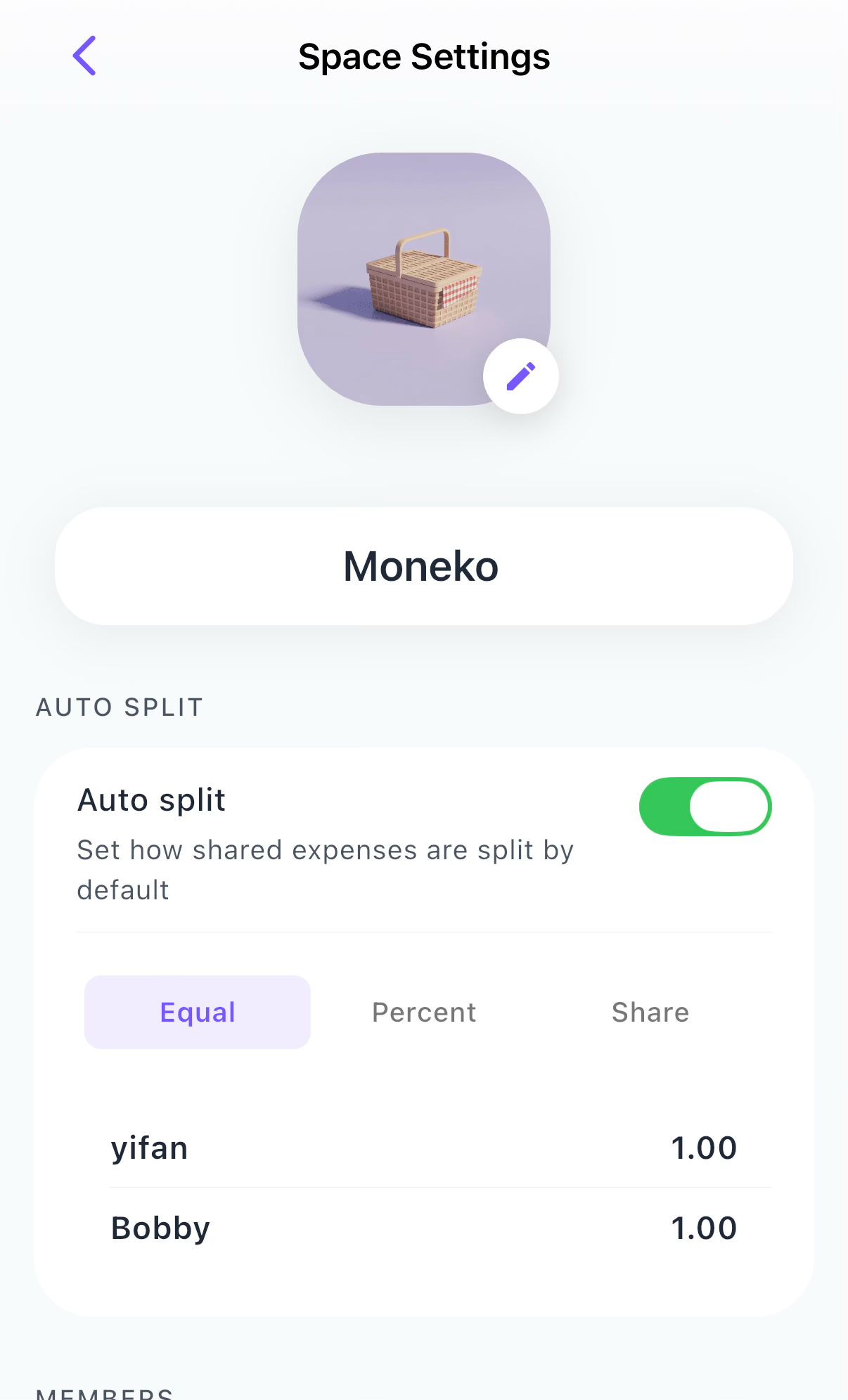
For example, if you have Auto Split set to Equal and there are two people in the Space, entering "Dinner 120" splits it as:
- 60 / 60
If you have Auto Split set to Percentage with 70% for you and 30% for Bob, entering "Dinner 120" splits it as:
- 84 / 36
Expected Result
The expense is added to the shared Space and split according to your configured Auto Split settings.
How to Customize a Split While Logging
If the split is not equal, you can say how it should be split while logging the expense.
For example:
- Dinner 120, 80 for me, 40 for Bob
- Taxi 50, I paid all
- Groceries 90, 30 for me, 60 for others
Moneko understands the split from your entry and adjusts it automatically.
If you do not specify a custom split, the expense stays evenly split.
Expected Result
The expense is recorded with the custom split you included in your message.
Best Practice
Include the total amount and how much each person should cover when the split is uneven.
How to Edit a Split Later
If something is wrong or missing, you can edit the split anytime.
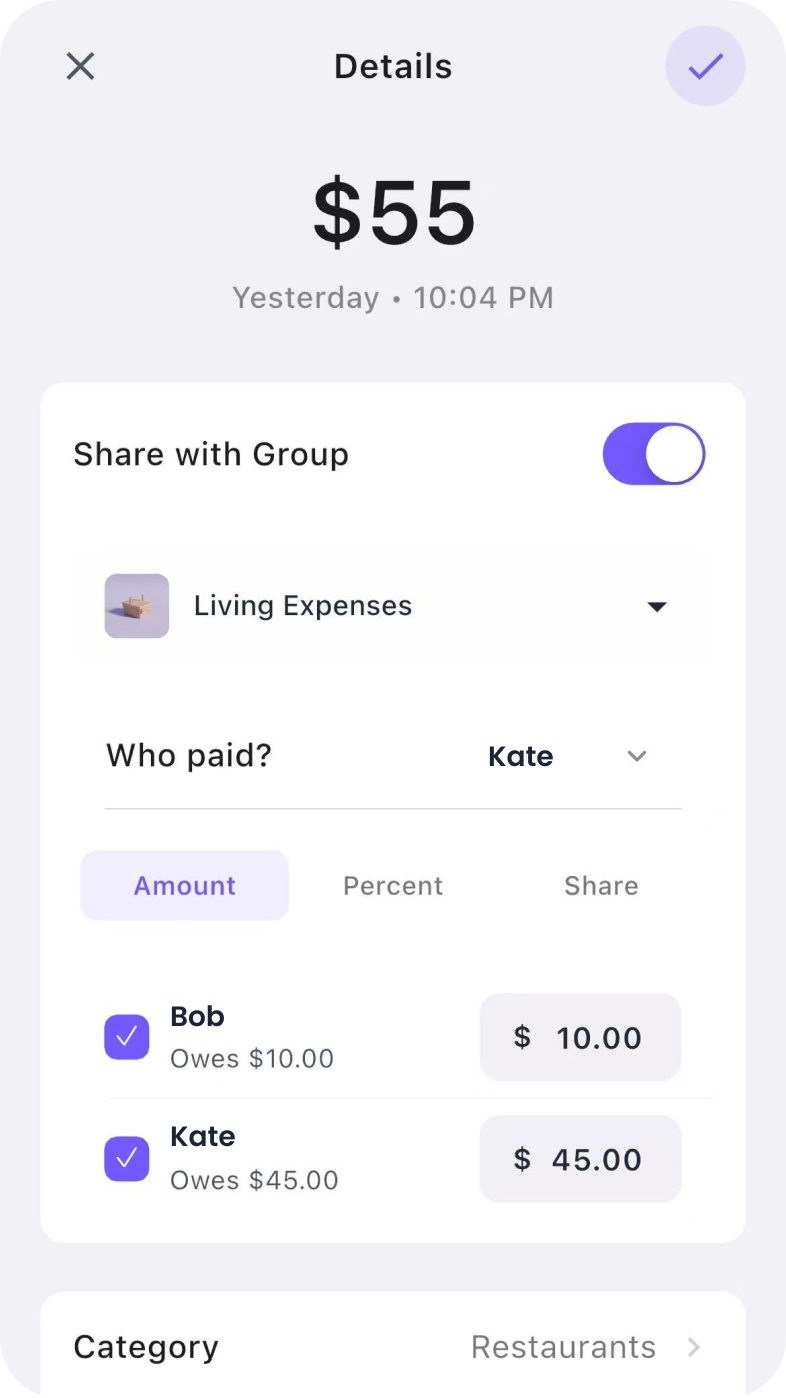
To edit a split:
- Tap the transaction.
- Open the transaction details.
- Edit the split.
- Save your changes.
You can change:
- who paid
- how much each person owes
Updates apply instantly for everyone in the Space.
Expected Result
The shared transaction updates for everyone in the Space after you save the edited split.
How to See Who Owes What
Moneko keeps track of shared balances automatically.
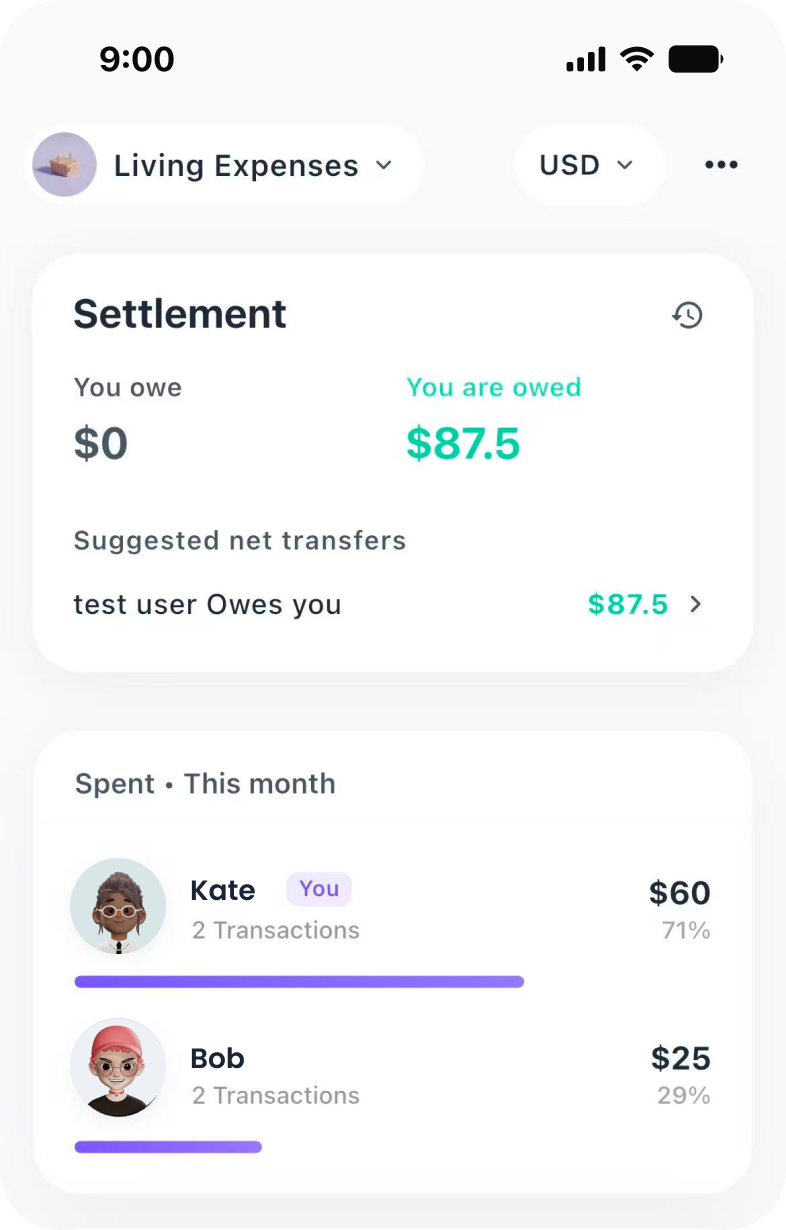
On the main page of your shared Space, you can see:
- total spent by each person
- number of transactions
- who owes whom
This helps everyone understand the current balance without checking manually.
Expected Result
You can quickly see shared spending and balances from the main page of the shared Space.
How to Settle Up
When you want to clear balances, use Settle Up.
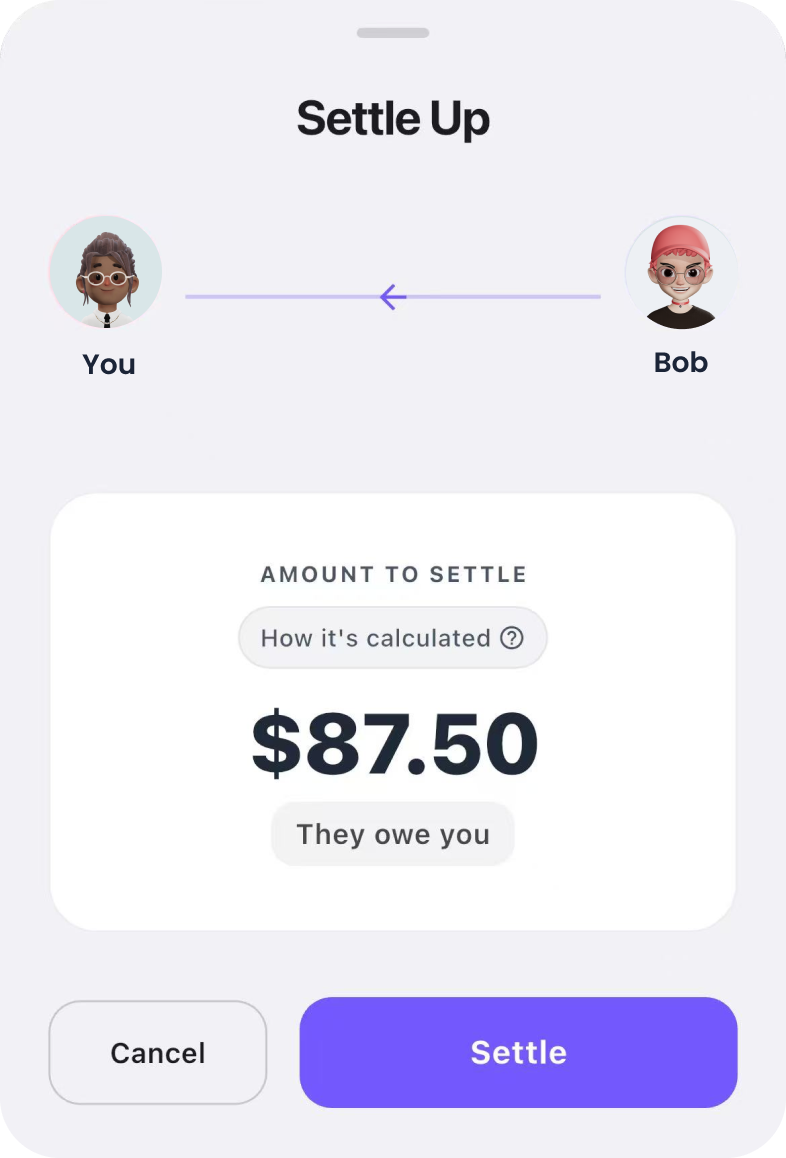
To settle up:
- Tap the summary widget.
- Open Settle Up.
- Tap Settle.
Moneko records the settlement and updates everything automatically.
Expected Result
The balance is cleared or updated after settlement is recorded.
Troubleshooting Common Issues
My Expense Split Evenly, but I Wanted a Custom Split
If you do not specify a custom split, Moneko splits the expense evenly by default.
To use a custom split, include the split while logging.
For example:
- Dinner 120, 80 for me, 40 for Bob
I Entered the Wrong Split
You can edit it later.
Tap the transaction, open details, edit the split, then save.
I Cannot See Who Owes What
Make sure you are viewing the main page of the correct shared Space.
Balances are shown based on the transactions inside that Space.
The Balance Looks Wrong
Check whether:
- the expense was added to the correct Space
- the split was entered correctly
- the correct person was marked as the payer
- any missing transaction needs to be added
I Settled Up, but the Balance Changed
This can happen when new expenses are added after settlement.
Moneko updates balances automatically based on the latest transactions and settlements in the Space.
Frequently Asked Questions
When you log an expense in a shared Space, Moneko splits it according to your Auto Split setting in household settings. You can configure the default split type (equal, percentage, or shares) for your Space.