

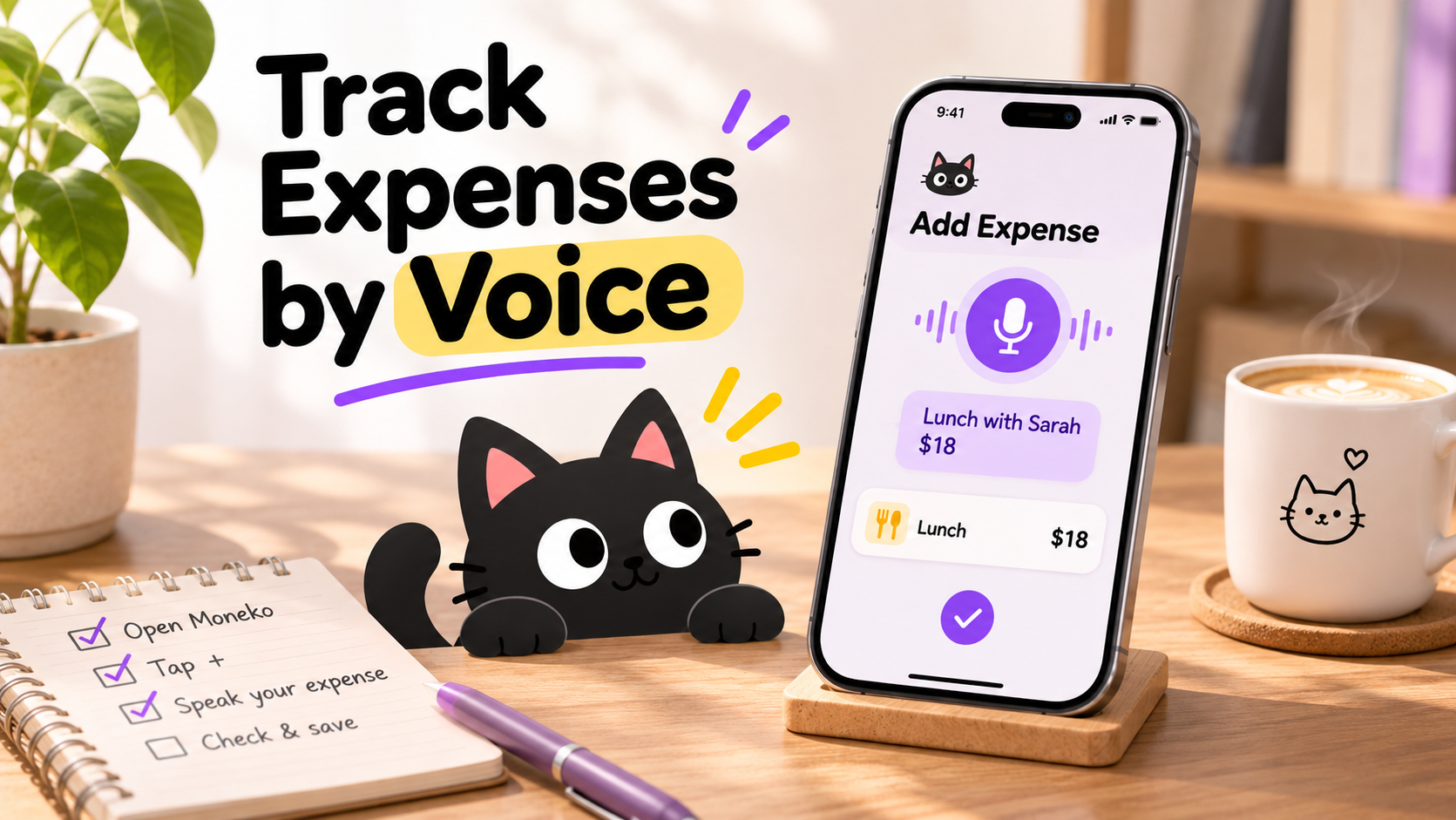
To track expenses with voice notes, use an expense tracker that accepts voice input, say the purchase and amount clearly, then review the saved entry. Voice can make it easier to capture a purchase while you’re on the move, but transcription and categorization can vary by app and recording conditions.
For example, you might say, “Lunch, eighteen dollars,” or “Taxi, thirty dollars, split.” A good expense tracker should make it easy to check the result and correct details before you rely on it in your budget.
What is voice expense tracking?
Voice expense tracking lets you record a purchase by speaking instead of typing. Depending on the app, you may speak directly into its expense-entry screen or dictate into a text field using your phone’s keyboard.
The app may use speech recognition to turn your words into text, then interpret details such as the purchase description and amount. Some tools can also suggest a category. The exact process differs between products, so check what your app saves automatically and what you need to confirm.
Voice entry is a way to capture spending. It does not replace reviewing your records. A misheard amount or merchant name can affect your budget, so take a moment to confirm that the saved transaction looks right.
How to record an expense with a voice note
The steps depend on the app, but the basic process is similar:
- Open the expense tracker’s voice-entry option or a text field with voice dictation.
- Say the purchase description and amount clearly.
- Include useful context, such as the date or whether the cost is shared, if the app supports it.
- Review the entry before saving or relying on it.
- Correct any details the app misunderstood.
Keep the entry short and specific. “Coffee, five dollars” gives the app more useful information than “I got something at the café.” If you bought several items and want to track them separately, record them individually or use a receipt feature that can capture item details.
Hypothetical example: You pay $18 for lunch and want to record it in your food budget. You say, “Lunch, eighteen dollars,” then check that the app saved $18 and selected the intended budget category. If it did not, edit the entry.
What should you include in a voice expense entry?
The amount is usually the most important detail. A brief description can help you recognize the purchase later.
| Detail | Example | Why it helps |
|---|---|---|
| Purchase | “Lunch” | Identifies what the expense was for |
| Amount | “Eighteen dollars” | Gives the app a value to record |
| Shared status, if supported | “Split with Maya” | Adds context for a shared expense |
| Extra description, if useful | “Lunch with Maya” | Helps distinguish similar transactions |
You do not need to narrate every detail. Add context when it helps you recognize, categorize, or split the expense. Check how your app handles shared costs before assuming it will divide an amount or update another person’s records.
When is voice useful, and when should you use another method?
Voice can be useful when speaking is convenient and you only need to record a simple purchase. It may be less practical when you are somewhere quiet, want to keep the transaction private, or need to enter several itemized purchases.
| Input method | May work well for | Check before relying on it |
|---|---|---|
| Voice entry | A quick, simple purchase when speaking is convenient | Whether the app captured the amount and description correctly |
| Text entry | Quiet settings or short entries where you already know the details | Whether you selected the right account or budget |
| Receipt photo | Purchases with multiple items or details you may want to check later | Which details the app extracted and whether they need correction |
| Manual editing | Fixing a transcription or categorization error | That the corrected transaction appears in the right place |
There is no single best method for every purchase. Use the one that makes it practical to record the transaction, then check the saved details. If you are in a quiet public place, text may be more convenient. If you want an itemized record, a receipt photo may be a better starting point.
How to log an expense by voice in Moneko
Moneko supports voice expense entry in its mobile app. Its help guide describes opening the app, tapping the + button, and using a voice entry. It gives “Lunch 18 with Sarah” as an example and says Moneko uses the voice entry to understand and record the expense. Check the result and edit it if needed.
You can also use Moneko’s text, chat-style, or receipt-photo entry, depending on what is convenient for the purchase. For shared expenses, Moneko’s guide suggests including terms such as “split” or “shared”; check that the expense appears in the intended Space and reflects the arrangement you meant. Moneko’s expense logging guide
This article covers voice entry in the Moneko app. Availability and behavior of other capture options should be checked against current product information before publication.
Common questions about voice expense tracking
Is voice expense tracking accurate?
It depends on the app, the recording, and the words spoken. Background noise, an unclear amount, or an unfamiliar merchant name can affect the result. Review each transaction and correct anything that was misheard.
Should I include the category when speaking?
You can include a category if your app supports it, but a short description and amount may be enough to get started. Check the saved entry to see how the app categorized the expense and change it if needed.
Can I track a receipt with voice?
Voice entry and receipt capture are separate options in some apps. Moneko supports both voice entries and receipt photos. Its help guide says receipt details may be extracted when possible; review the result rather than assuming every item was captured.
What if the app records the wrong amount?
Edit the transaction as soon as you notice the error. Check the amount, description, category, and budget location so the correction appears in the right place.
Can I use voice in a quiet or private setting?
You can use voice dictation where it is comfortable to speak. If speaking would be disruptive or you prefer not to say financial details aloud, use text entry or another capture method.
Make voice tracking a habit that works for you
Voice notes can make it easier to capture a simple purchase, especially when typing is inconvenient. Keep entries clear, use text or a receipt when that fits better, and review what the app saved. The useful method is the one you can use consistently while keeping your records accurate.
